2025. 12. 5. 21:29ㆍ대우개발원 수업 내용/css로 웹 페이지 꾸미기
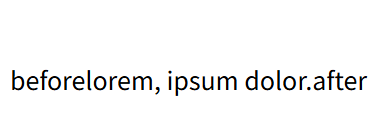
lorem, ipsum dolor.
    .abs::before{
      content:"before";
    }
    .abs::after{
      content:"after";
    }
<html>
  <body>
    <p class="abs">lorem, ipsum dolor.</p>
  </body>
<html>
아간단히 말하면 ::before와 ::after는
선택한 요소의 앞과 뒤에 ‘가상의 콘텐츠’를 붙이는 CSS 기능
✔ 전체 코드 분석
.abs::before{
  content:"before";
}
.abs::after{
  content:"after";
}
<p class="abs">lorem, ipsum dolor.</p>
✔ 1) .abs::before
<p class="abs"> 요소 앞부분에 "before"라는 글자를 삽입함.
즉 실제 HTML에는 없지만, 브라우저가 렌더링할 때만 가짜 요소를 만들어서 문장 앞에 붙여줘.
결과:
before lorem, ipsum dolor.
✔ 2) .abs::after
<p class="abs"> 요소 뒷부분에 "after"라는 글자를 삽입함.
결과:
lorem, ipsum dolor. after
✔ 3) 실제로 출력되는 전체 문장
before + 원래 문장 + after
이 됨.
즉 화면에는 이렇게 보임:
before lorem, ipsum dolor. after
✔ 4) 특징 정리
기능 설명
| ::before | 선택된 요소 앞에 가상 요소 삽입 |
| ::after | 선택된 요소 뒤에 가상 요소 삽입 |
| content | 가상 요소가 무엇을 넣을지 지정 (텍스트/이미지 URL 가능) |
| HTML 수정 필요 없음 | CSS만으로 추가 표시 가능 |
✔ 5) 활용 예시
- 문단 앞에 아이콘 넣기
- 버튼 뒤에 화살표 표시
- 따옴표 자동 추가
- badge, 라벨 등 시각적 요소 추가
예:
button::after {
  content: " →";
}

이용 안내
Lorem ipsum dolor sit amet consectetur, adipisicing elit. Voluptas quos inventore officia molestias alias fuga totam qui assumenda natus, voluptatibus dicta dolores impedit, velit in? Dicta eius nesciunt facilis hic.
객실 소개
Lorem ipsum dolor sit amet consectetur, adipisicing elit. Tenetur nam pariatur, quibusdam harum maiores architecto possimus excepturi amet minus saepe doloribus, est ullam hic quaerat quo in, aperiam vero a?
예약 방법 및 요금
Lorem ipsum dolor sit amet consectetur adipisicing elit. Nemo nihil unde cupiditate fugiat corrupti? Ad cumque sequi necessitatibus voluptates temporibus unde, exercitationem fuga modi nulla maxime voluptas nihil possimus facere.
<!DOCTYPE html>
<html lang="en">
<head>
  <meta charset="UTF-8">
  <meta name="viewport" content="width=device-width, initial-scale=1.0">
  <title>Document</title>
  <style>
    .container{
      width: 960px;
      margin: 0 auto;
    }
    .navi{
      width: 960px;
      height: 60px;
      padding-bottom: 10px;
      border-bottom: 2px solid #ccc;
    }
    .navi ul{
      list-style: none;
      padding-top: 10px;
      padding-bottom: 5px;
    }
    .navi ul li{
      float: left;
      width: 150px;
      padding: 10px;
    }
    .navi a:link, .navi a:visited{
      /* 방문한 링크와 방문하지 않은 링크를 설정 */
      font-size: 14px;
      color: #000;
      padding: 10px;
      text-decoration: none; /*밑줄 없앰*/
      text-align: center;
    }
    .navi a:hover, .navi a:focus{
      background-color: #222;
      color: #fff;
    }
    .navi a:active{
      background-color: #f00;
    }
    .contents{
      margin: 30px auto;
      width: 400px;
      padding: 20px;
      border: 1px solid #222;
      border-radius: 5px;
    }
    #intro:target{
      background-color: #0069e0;
      color: #fff;
    }
    #room:target{
      background-color: #ff9844;
    }
    #reservation:target{
      background-color: #fff8dc;
    }
  </style>
</head>
<body>
  <div class="container">
    <nav class="navi">
      <ul>
        <li><a href="#intro">이용 안내</a></li>
        <li><a href="#room">객실 소개</a></li>
        <li><a href="#reservation">예약 방법 및 요금</a></li>
        <li><a href="#">예약하기</a></li>
      </ul>
    </nav>
  <div id="intro" class="contents">
    <h2>이용 안내</h2>
    <p>Lorem ipsum dolor sit amet consectetur, adipisicing elit. Voluptas quos inventore officia molestias alias fuga totam qui assumenda natus, voluptatibus dicta dolores impedit, velit in? Dicta eius nesciunt facilis hic.</p>
  </div>
  <div id="room" class="contents">
    <h2>객실 소개</h2>
    <p>Lorem ipsum dolor sit amet consectetur, adipisicing elit. Tenetur nam pariatur, quibusdam harum maiores architecto possimus excepturi amet minus saepe doloribus, est ullam hic quaerat quo in, aperiam vero a?</p>
  </div>
  <div id="reservation" class="contents">
    <h2>예약 방법 및 요금</h2>
    <p>Lorem
      ipsum dolor sit amet consectetur adipisicing elit. Nemo nihil unde cupiditate fugiat corrupti? Ad cumque sequi necessitatibus voluptates temporibus unde, exercitationem fuga modi nulla maxime voluptas nihil possimus facere.</p>
  </div>
  </div>
</body>
</html>
내비게이션 메뉴를 클릭하면 특정 콘텐츠 영역으로 이동하고, 이동된 영역만 배경색이 바뀌도록(:target) 만드는 페이지
각 부분이 어떤 역할을 하는지 초보자도 이해되게 간단하고 또 정확하게 설명
✔ 전체 구조 한눈에 보기
- 상단 메뉴(이용 안내 / 객실 소개 / 예약 방법)
- 각 메뉴를 클릭 → 같은 페이지 안의 특정 div로 이동
- 이동된 div는 CSS :target 효과로 강조 색상으로 바뀜
⭐ 1. <style> 영역 — 디자인(CSS)
✔ .container
.container{
  width: 960px;
  margin: 0 auto;
}
→ 전체 레이아웃을 가운데 정렬하고, 너비를 고정(960px)함.
✔ 내비게이션 메뉴 스타일
.navi{
  width: 960px;
  height: 60px;
  padding-bottom: 10px;
  border-bottom: 2px solid #ccc;
}
→ 메뉴 영역의 크기와 아래쪽 회색 줄을 만듦.
.navi ul{
  list-style: none;
  padding-top: 10px;
  padding-bottom: 5px;
}
→ 메뉴 앞에 점(●) 없애고 위아래 여백 줌.
.navi ul li{
  float: left;
  width: 150px;
  padding: 10px;
}
→ 리스트 항목들을 가로 배치함.
✔ 메뉴 글자 스타일 + 마우스 효과
.navi a:link, .navi a:visited{
  font-size: 14px;
  color: #000;
  padding: 10px;
  text-decoration: none;
  text-align: center;
}
→ 기본 글자색, 밑줄 제거.
.navi a:hover, .navi a:focus{
  background-color: #222;
  color: #fff;
}
→ 마우스를 올리면 (혹은 focus되면) 배경 검정, 글자 흰색.
.navi a:active{
  background-color: #f00;
}
→ 클릭 순간 빨간색.
⭐ 2. .contents — 내용 박스 스타일
.contents{
  margin: 30px auto;
  width: 400px;
  padding: 20px;
  border: 1px solid #222;
  border-radius: 5px;
}
내용을:
- 너비 400px
- 라운드 처리
- 테두리 표시
- 가운데 정렬
이렇게 예쁘게 정리함.
⭐ 3. :target — 클릭된 영역만 강조
메뉴에서 href="#intro" 를 누르면
페이지 주소 끝이 이렇게 됨:
.../index.html#intro
이때 CSS는 해당 id와 같은 요소에 스타일을 적용함.
✔ intro 클릭 시
#intro:target{
  background-color: #0069e0;
  color: #fff;
}
✔ room 클릭 시
#room:target{
  background-color: #ff9844;
}
✔ reservation 클릭 시
#reservation:target{
  background-color: #fff8dc;
}
즉 클릭한 섹션만 자동으로 배경색이 바뀜
→ 자바스크립트 없이도 페이지 효과를 만들 수 있는 기법.
⭐ 4. HTML 본문 — 내비게이션과 내용 연결
✔ 메뉴 영역
<li><a href="#intro">이용 안내</a></li>
<li><a href="#room">객실 소개</a></li>
<li><a href="#reservation">예약 방법 및 요금</a></li>
각 링크는 HTML 안의 id와 정확히 연결됨.
✔ 콘텐츠 영역
<div id="intro" class="contents">...</div>
<div id="room" class="contents">...</div>
<div id="reservation" class="contents">...</div>
앞서 나온 href="#intro" 와 매칭됨.
🎯 결과적으로 어떤 기능을 가진 페이지인가?
✔ 메뉴 클릭 → 해당 위치로 스크롤 이동
✔ 이동된 위치만 CSS :target으로 색상 강조
✔ float으로 가로 메뉴 구성
✔ 스크립트 없이 간단한 페이지 내 내비게이션 구현
<!DOCTYPE html>
<html lang="en">
<head>
  <meta charset="UTF-8">
  <meta name="viewport" content="width=device-width, initial-scale=1.0">
  <title>링크 가상 클래스</title>
<style>
  a:link{
    color:orange
  }
  a:visited{
    color: green;
  }
  .hover:hover{
    color: red;
  }
  button:active{
    color: red;
  }
  input:checked + label{
    color: red;
  }
</style>
</head>
<body>
  <a href="https://www.naver.com/">네이버</a>
  <a href="https://www.google.com/">구글</a>
  <p class="hover">hover</p>
  <button>active</button>
  <input type="checkbox" id="userid">
  <label for="userid">아이디</label>
</body>
</html>
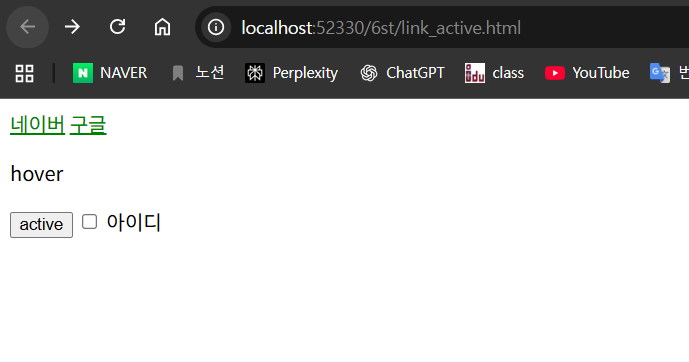
이 코드는 **CSS 가상 클래스(pseudo-class)**들을 한 번에 연습하는 구조
각 요소가 어떤 상황에서 어떻게 스타일이 바뀌는지 깔끔하게 설명
✔ 1. a:link
a:link{
  color: orange;
}
👉 의미
아직 방문하지 않은 링크의 글자색을 오렌지색으로 표시함.
예: 처음 네이버·구글 링크를 클릭하기 전까지
→ 글자색은 주황색.
✔ 2. a:visited
a:visited{
  color: green;
}
👉 의미
이미 방문한 링크의 글자색을 녹색으로 바꿈.
네이버를 한 번 클릭하고 다시 돌아오면
→ "네이버" 링크는 녹색이 됨.
브라우저가 "방문 여부"를 기억하기 때문에 가능함.
✔ 3. .hover:hover
.hover:hover{
  color: red;
}
👉 의미
마우스를 올렸을 때(:hover) 글자색이 빨간색으로 바뀜.
HTML:
<p class="hover">hover</p>
→ 마우스를 가져다 대는 동안만 빨간색.
※ a 태그도 hover 가능하지만, 여기서는 p 태그에 적용한 것.
✔ 4. button:active
button:active{
  color: red;
}
👉 의미
버튼을 누르고 있는 순간에만 글자가 빨간색이 됨.
즉 클릭하고 있는 동안만 변화 → 매우 짧은 시간.
HTML:
<button>active</button>
✔ 5. input:checked + label
input:checked + label{
  color: red;
}
👉 의미
체크박스를 체크한 상태(checked)일 때
바로 뒤에 있는 형제 label의 글자색을 빨간색으로 바꿈.
HTML 구조:
<input type="checkbox" id="userid">
<label for="userid">아이디</label>
여기서 input 바로 다음에 label이 오기 때문에
체크하면 label이 빨간색이 됨.
✔ 중요한 포인트
- + 는 바로 다음 형제 요소만 선택 가능
- 체크박스가 체크된 경우에만 스타일 적용
✔ 전체적으로 이 코드가 하는 일
요소 상황 색상
| a | 방문하지 않음 | 주황색 |
| a | 방문함 | 초록색 |
| p.hover | 마우스 올리면 | 빨간색 |
| button | 클릭하고 있는 순간 | 빨간색 |
| label | 체크박스 체크됨 | 빨간색 |
✔ 결과 화면 요약
- 링크는 방문 여부에 따라 색이 바뀜
- hover 테스트용 p 태그는 마우스 올리면 빨간색
- 버튼은 누르는 순간만 빨간색
- 체크박스를 체크하면 label "아이디"가 빨간색

/* #signup input[text=text],
#signup input[text=password],
#signup input[text=tel],
#signup input[text=email] */
 #signup input:not[type=radio]{
  border: 1px solid #ccc;
  border-radius: 3px;
  font-size: 13px;
  padding: 5px;
  width: 200px;
}
:not() 은 **CSS에서 특정 조건을 “제외(exclude)”하고 선택할 때 사용하는 가상 클래스(pseudo-class)다.
~를 제외한 모든 요소를 선택한다.
✔ 기본 문법
선택자:not(조건)
조건에 해당하지 않는 요소만 골라냄.
✔ 네 코드 설명
#signup input:not[type=radio]{
  border: 1px solid #ccc;
  border-radius: 3px;
  font-size: 13px;
  padding: 5px;
  width: 200px;
}
이 선택자는 의미가 이렇게 됨:
#signup 안에 있는 input 중에서
type="radio"가 아닌 모든 input에게 스타일을 적용해라.
즉 다음 input들은 스타일 적용됨:
- <input type="text">
- <input type="password">
- <input type="email">
- <input type="tel">
- <input type="number">
- <input type="checkbox"> (❗ checkbox도 포함됨)
그리고 아래는 스타일 적용 안 됨:
- <input type="radio"> ← 제외됨
✔ 왜 이렇게 쓰는가?
보통 회원가입 폼(signup)에서:
- text, password, email 같은 입력창은 길고 border 둥글게 하고 싶고
- radio나 checkbox는 디자인이 달라서 스타일을 주면 깨짐
그래서 제외할 때 이렇게 씀:
input:not([type=radio])
혹은 여러 개 제외할 수도 있음:
input:not([type=radio]):not([type=checkbox])
✔ 더 다양한 예시
1) .item 클래스 중 .active 아닌 요소만 선택
.item:not(.active) {
  opacity: 0.3;
}
2) 모든 li 중 첫 번째 제외
li:not(:first-child) {
  margin-top: 10px;
}
3) a 태그 중 href 없는 것만 선택
a:not([href]) {
  color: red;
}
✔ 요약
:not()은 CSS에서 조건을 부정(제외)하는 선택자.
네 코드에서는:
input 중에서 radio 제외한 모든 입력창에 스타일 적용
이라는 의미.

- lorem 1
- lorem 2
- lorem 3
- lorem 4
lorem 0
lorem 1
lorem 2
lorem 3
lorem 4
<!DOCTYPE html>
<html lang="en">
<head>
  <meta charset="UTF-8">
  <meta name="viewport" content="width=device-width, initial-scale=1.0">
  <title>:first-child, :last-child</title>
  <style>
    li:first-child{
      color: red;
    }
    li:last-child{
      color: red;
    }

    p:nth-child(2){
      color: red;
    }
    /* 2번째 */
    p:nth-last-child(2){
      color: blue;
    }
    /* 뒤에서 2번째 */
  </style>
</head>
<body>
  <ul>
    <li>lorem 1</li>
    <li>lorem 2</li>
    <li>lorem 3</li>
    <li>lorem 4</li>
  </ul>

  <hr>
  <p>lorem 0</p>
  <div>
    <p>lorem 1</p>
    <p>lorem 2</p>
  </div>
  <div>
    <p>lorem 3</p>
    <p>lorem 4</p>
  </div>
</body>
</html>
child 관련 가상 클래스들 + 네 코드에 나온 예시까지 모두 한 번에 완벽하게 설명
✅ 1. :first-child
부모의 첫 번째 자식 요소를 선택함.
li:first-child {
  color: red;
}
→ <ul> 안에서 첫 번째 <li>만 빨간색.
✅ 2. :last-child
부모의 마지막 자식 요소를 선택함.
li:last-child {
  color: red;
}
→ <ul> 안에서 마지막 <li>만 빨간색.
✅ 3. :nth-child(n)
부모 안에서 n번째 자식 요소를 선택함.
여기서 요소의 종류는 신경 쓰지 않음.
p:nth-child(2){
  color: red;
}
중요!
이건 "두 번째 자식이 p 태그일 때"만 적용됨.
즉 아래 구조:
<div>
  <p>① lorem 1</p>  ← 1번째 자식
  <p>② lorem 2</p>  ← 2번째 자식 → 이게 빨간색
</div>
하지만 이런 구조에서는 적용 ❌:
<div>
  <h1>aaa</h1>   ← 1번째 자식
  <p>bbb</p>    ← 2번째 자식(p라 OK)
</div>
✅ 4. :nth-last-child(n)
뒤에서 n번째 자식 요소를 선택함.
p:nth-last-child(2){
  color: blue;
}
뒤에서부터 2번째 자식이 p 일 때만 적용됨.
예)
<div>
  <p>1</p>
  <p>2</p>  ← 뒤에서 2번째 → 파란색
</div>
📌 여기는 사진에 있는 전체 child 속성 정리
아래는 질문에 포함된 표의 모든 항목을 설명한 버전이야.
⭐ :first-child
부모의 첫 번째 자식 요소
⭐ :last-child
부모의 마지막 자식 요소
⭐ :nth-child(n)
n번째 자식을 선택
종류와 관계없이 부모 기준 전체 순서를 본다.
예: :nth-child(3) → 부모의 3번째 자식이 무엇이든 선택
⭐ :nth-last-child(n)
뒤에서 n번째 자식 선택
뒤에서부터 1, 2, 3번째 세는 방식.
⭐ :nth-of-type(n)
같은 태그 타입(p, li 등) 중에서 n번째만 선택
(여기서부터 child와 완전히 다름!)
예:
<div>
  <h1></h1>
  <p></p>   ← p 중 첫 번째
  <p></p>   ← p 중 두 번째
</div>

p:nth-of-type(2) → 두 번째 p
⭐ :nth-last-of-type(n)
같은 태그 타입 중에서 뒤에서 n번째 선택
⭐ :first-of-type
부모 안에서 특정 태그(p, div 등) 중 첫 번째
예:
p:first-of-type
⭐ :last-of-type
특정 태그 타입 중 마지막 요소 선택
🎯 child vs of-type 차이 정확하게 정리
선택자 기준
| :nth-child(n) | 부모의 전체 자식 순서 |
| :nth-of-type(n) | 부모 안의 같은 태그(p만, li만 등) 중에서 순서 |
📌 네 코드에서 실제로 적용되는 부분 정리
✔ UL 안의 첫/마지막 li
li:first-child   → lorem 1
li:last-child    → lorem 4
✔ p:nth-child(2)
이 구조에서 적용됨:
<div>
  <p>lorem 1</p>  ← 1번째
  <p>lorem 2</p>  ← 2번째 → 빨간색
</div>
하지만 이 구조 아래에서는 적용 안 됨:
<div>
  <h1></h1>  ← 1번째
  <p></p>    ← 2번째 O
</div>
주의점:
부모(inner div)에서 두 번째 자식이 p일 때만 적용됨.
✔ p:nth-last-child(2)
div 아래 구조에서 뒤에서 2번째 p가 파란색
<div>
  <p>lorem 3</p>
  <p>lorem 4</p> ← 뒤에서 2번째 → 파란색
</div>
💬 더 쉽게 기억하는 방법
- child → 전체 자식 중 번호 기준
- of-type → 같은 태그끼리 번호 매김
- last → 뒤에서부터 번호 세기

<!DOCTYPE HTML>
<html lang="ko">
<head>
  <meta charset="utf-8">
  <title>회원 가입</title>
  <style>
    .container {
      width: 960px;
      margin : 0 auto;
    }
    .navi{
      width: 960px;
      height: 60px;
      padding-bottom: 10px;
      border-bottom: 2px solid #ccc;
    }

    .navi ul{
      list-style: none;
      padding-top: 10px;
      padding-bottom: 5px;
    }
    .navi ul li {
      display: inline-block;
      width: 150px;
      padding: 10px;
    }
    .navi a:link, .navi a:visited {
      font-size: 14px;
      padding: 10px;
      text-decoration: none;  /* 밑줄 없음 */

    }
    .navi a:hover,  .navi a:focus {
      background-color: #222;  /* 배경 색 */
      color: #fff;  /* 글자 색 */
    }

    .navi a:active {
      background-color: #f00;  /* 배경 색 */
    }

    #signup {
      background: #fff;
      border: 1px solid #222;
      border-radius: 5px;
      padding: 20px;
      width: 400px;
      margin: 30px auto;
    }

    #signup fieldset {
      border: 1px solid #ccc;
      margin-bottom: 30px;
    }

    #signup legend {
      font-size: 16px;
      font-weight: bold;
      padding-left: 5px;
      padding-bottom: 10px;
    }

    #signup ul li {
      line-height: 30px;
      list-style: none;
      padding: 5px 10px;
      margin-bottom: 2px;
    }

    #signup label[for="fullname"], label[for="tel"] {
      float: left;
      font-size: 13px;
      width: 60px;
    }

    /* #signup fieldset:first-of-type label {
      float: left;
      font-size: 13px;
      width: 60px;
    } */

    /* #signup input[type=text], input[type=tel] {  텍스트와 전화번호 필드에만 스타일 적용하는 코드
      border: 1px solid #ccc;
      border-radius: 3px;
      padding: 5px;
      width: 200px;
    } */

    #signup input:not([type=radio]) {
      border: 1px solid #ccc;
      border-radius: 3px;
      padding: 5px;
      width: 200px;
    }

    #signup input:not([type=radio]):hover{
      border-color: #f00;
    }

    #signup input:checked + label{
      /* input 요소에 checked 속성이 추가되었을 때 label 요소의 스타일일 */
      color: red;
      font-weight: bold;
    }

    #signup button {
      border: 1px solid #222;
      border-radius: 20px;
      display: block;
      font: 16px 맑은고딕,굴림,돋움;
      letter-spacing: 1px;
      margin: auto;
      padding: 7px 25px;
    }

  </style>
</head>
<body>
  <div class="container">
    <nav class="navi">
      <ul>
        <li><a href="#intro">이용 안내</a></li>
        <li><a href="#room">객실 소개</a></li>
        <li><a href="#reservation">예약 방법 및 요금</a></li>
        <li><a href="#">예약하기</a></li>
      </ul>
    </nav>
    <form id="signup">
      <fieldset>
        <legend>개인 정보</legend>
        <ul>
          <li>
            <label for="fullname">이름</label>
            <input id="fullname" name="fullname" type="text" required>
          </li>
          <li>
            <label for="tel">연락처</label>
            <input id="tel" name="tel" type="tel">
          </li>
        </ul>
      </fieldset>
      <fieldset>
        <legend>객실 형태</legend>
        <ul>
          <li>
            <input type="radio" name="room" id="basic">
            <label for="basic">기본형(최대 2인)</label>
          </li>
          <li>
            <input type="radio" name="room" id="family">
            <label for="family">가족형(최대 8인)</label>
          </li>
        </ul>
      </fieldset>
      <button type="submit"> 제출 </button>
    </form>
  </div>
</body>
</html>
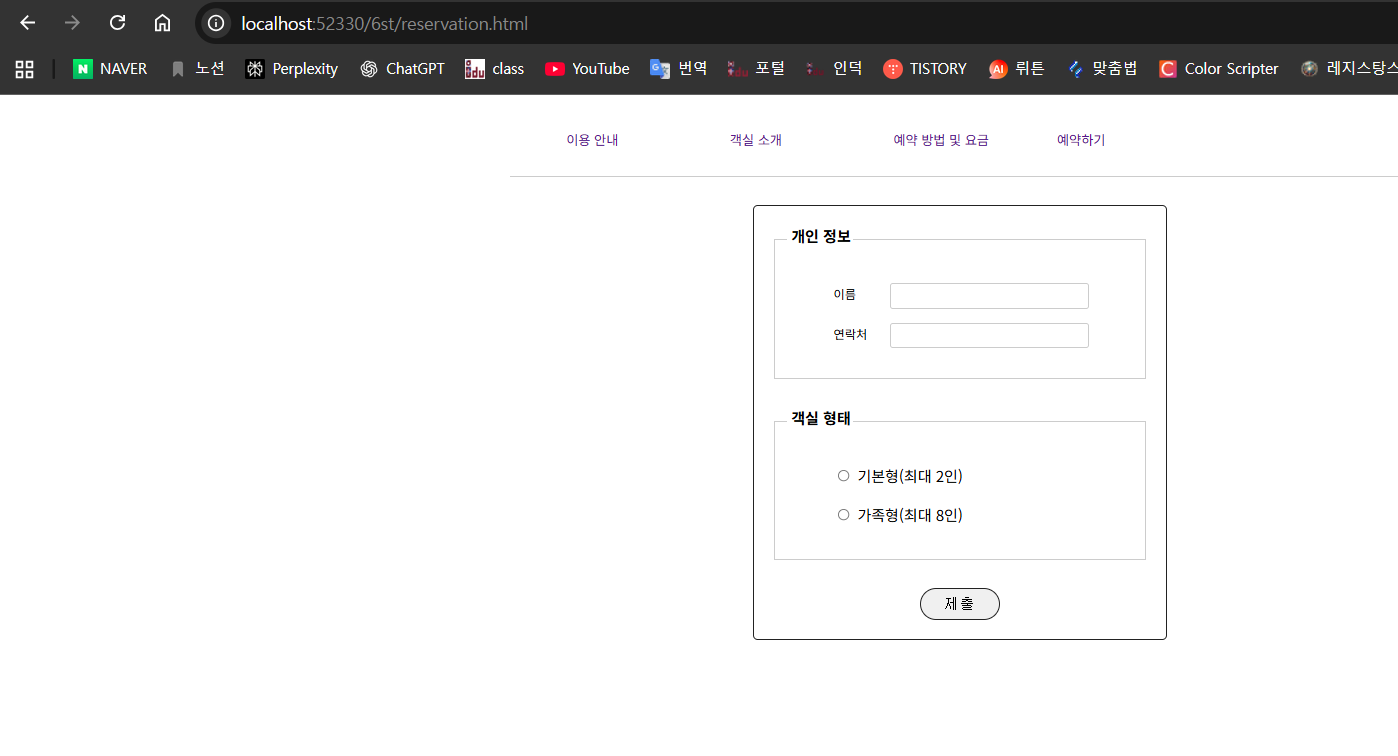
아래에서는 이 HTML/CSS 코드 전체를 완전히
구조 → 동작 → CSS 원리 → 의도 → 화면 결과까지 싹 다 설명.
🚀 전체 구조 먼저 요약
이 페이지는 크게 2개의 영역으로 구성됨:
① 상단 내비게이션 메뉴(Navigation Bar)
메뉴 항목:
- 이용 안내
- 객실 소개
- 예약 방법 및 요금
- 예약하기
이것은 ul/li/a로 만든 가로 메뉴이며, 마우스 효과(:hover, :active)를 가지고 있음.
② 회원가입 폼(Sign up Form)
폼 안은 두 개의 fieldset으로 나뉨:
- 개인 정보
- 이름(text)
- 연락처(tel)
- 객실 형태
- 기본형(radio)
- 가족형(radio)
CSS를 통해 input, label, 버튼 스타일링까지 완성.
🧩 HTML 전체 구조 분석 (꼼꼼하게)
<div class="container">
container는 전체 페이지 레이아웃을 가운데 정렬하는 프레임.
960px 고정 폭 → PC 기반 레이아웃에 적합.
⭐ Navigation 영역
<nav class="navi">
  <ul>
    <li><a href="#intro">이용 안내</a></li>
    <li><a href="#room">객실 소개</a></li>
    <li><a href="#reservation">예약 방법 및 요금</a></li>
    <li><a href="#">예약하기</a></li>
  </ul>
</nav>
- <nav>는 문서 내 탐색 링크 영역을 의미하는 시맨틱 태그.
- <ul> 안에 <li>로 메뉴 구조를 만들고, <a>를 통해 링크 제공.
지금은 #intro, #room, #reservation 같은 id가 없지만
메뉴 형태를 연습하는 데 초점이 있음.
⭐ 회원가입 폼
<form id="signup">
CSS에서 #signup 으로 개별 스타일 지정.
1️⃣ 첫 번째 fieldset (개인 정보)
<fieldset>
  <legend>개인 정보</legend>
  <ul>
    <li>
      <label for="fullname">이름</label>
      <input id="fullname" type="text" required>
    </li>
    <li>
      <label for="tel">연락처</label>
      <input id="tel" type="tel">
    </li>
  </ul>
</fieldset>
- fieldset은 입력 폼을 논리적으로 그룹화함.
- legend는 해당 그룹의 제목.
label은 float: left로 왼쪽 정렬되고
input은 오른쪽에 배치되어 자연스러운 입력폼 배치가 완성됨.
2️⃣ 두 번째 fieldset (객실 형태)
<fieldset>
  <legend>객실 형태</legend>
  <ul>
    <li>
      <input type="radio" name="room" id="basic">
      <label for="basic">기본형(최대 2인)</label>
    </li>
    <li>
      <input type="radio" name="room" id="family">
      <label for="family">가족형(최대 8인)</label>
    </li>
  </ul>
</fieldset>
radio는 name="room"이므로 둘 중 하나만 선택 가능.
radio를 체크하면 label이 빨간색 + 굵게 되는 CSS가 적용됨
(input:checked + label).
3️⃣ 제출 버튼
<button type="submit"> 제출 </button>
둥근 모서리(border-radius 20px), 중앙 정렬(margin: auto)로 예쁘게 배치됨.
🎨 CSS 완전 분석
이제 CSS 부분을 세세하게 뜯어보자.
🟦 1. .container
.container {
  width: 960px;
  margin : 0 auto;
}
- 레이아웃 넓이 설정(960px)
- auto margin → 화면 가운데 정렬
🟦 2. Navigation 스타일
nav 크기 설정
.navi{
  width: 960px;
  height: 60px;
  padding-bottom: 10px;
  border-bottom: 2px solid #ccc;
}
→ nav 박스의 높이·너비 설정, 아래쪽 경계선 추가.
ul 스타일
.navi ul{
  list-style: none;
  padding-top: 10px;
  padding-bottom: 5px;
}
- 점(●) 제거
- 위아래 여백 추가로 메뉴 중심 정렬
li 스타일
.navi ul li {
  display: inline-block;
  width: 150px;
  padding: 10px;
}
display: inline-block → 가로로 나열됨
width 150px → 메뉴 폭 균등
a 링크 상태별 스타일
.navi a:link, .navi a:visited {
  font-size: 14px;
  padding: 10px;
  text-decoration: none;
}
- 방문 전/후 스타일 동일하게 설정
- 밑줄 제거
.navi a:hover, .navi a:focus {
  background-color: #222;
  color: #fff;
}
hover = 마우스 올렸을 때
focus = 키보드 tab으로 선택되었을 때
→ 어두운 배경 + 흰 글자
.navi a:active {
  background-color: #f00;
}
active = 클릭하는 순간 빨간색
🟦 3. #signup — 회원가입 전체 박스
#signup {
  background: #fff;
  border: 1px solid #222;
  border-radius: 5px;
  padding: 20px;
  width: 400px;
  margin: 30px auto;
}
- 흰색 배경
- 어두운 테두리
- 둥근 모서리
- padding으로 내부 여백 확보
- width 400px → 작은 카드 형태
- margin auto → 가운데 정렬
🟦 4. fieldset, legend 형태
#signup fieldset {
  border: 1px solid #ccc;
  margin-bottom: 30px;
}
→ 개별 그룹 구분 박스
#signup legend {
  font-size: 16px;
  font-weight: bold;
  padding-left: 5px;
}
→ 그룹 제목 강조
🟦 5. label 정렬
#signup label[for="fullname"], label[for="tel"] {
  float: left;
  font-size: 13px;
  width: 60px;
}
float:left → label을 한 줄 왼쪽으로 붙임
width:60px → input 들과 수평 정렬 가능하게 함
즉:
이름     [     ]
연락처   [     ]
형태가 자연스럽게 만들어짐.
🟦 6. input 스타일 (radio 제외)
#signup input:not([type=radio]) {
  border: 1px solid #ccc;
  border-radius: 3px;
  padding: 5px;
  width: 200px;
}
:not([type=radio]) → radio 버튼은 제외
text / tel input만 스타일 적용됨.
⭐ input hover 추가
#signup input:not([type=radio]):hover{
  border-color: #f00;
}
→ 마우스 올리면 input 테두리 빨간색으로 변함
시각적 피드백을 제공하는 중요한 UX 요소.
🟦 7. radio 선택 시 label 강조
#signup input:checked + label{
  color: red;
  font-weight: bold;
}
이 코드는 형제 선택자(+) 를 사용함.
조건:
- input에 checked가 적용되었을 때 (라디오 선택됨)
- input 바로 다음 요소(label)에 스타일을 적용함
결과:
- 선택한 객실 형태 라벨만 빨간색 + 굵은 글씨
UX적으로 어떤 방이 선택되었는지 명확해짐.
🟦 8. 제출 버튼 디자인
#signup button {
  border: 1px solid #222;
  border-radius: 20px;
  display: block;
  font: 16px 맑은고딕,굴림,돋움;
  letter-spacing: 1px;
  margin: auto;
  padding: 7px 25px;
}
- 동그란 버튼(border-radius: 20px)
- 중앙 정렬(display: block + margin auto)
- 패딩으로 버튼 크기 확보
- 한글 폰트 지정
전형적인 "깔끔한 제출 버튼 디자인" 패턴.
🎉 최종 디자인 결과 (요약)
✔ 메뉴
가로 메뉴, hover 시 색 반전, 클릭 시 빨강.
✔ 회원정보 입력
이름/연락처 input은 깔끔한 테두리, hover 효과 있음.
✔ 객실 선택(radio)
radio 선택 → label이 빨갛고 굵게 변함.
✔ 제출 버튼
둥글고 가운데, 깔끔한 버튼 스타일.
🔥 배운 개념 정리
개념 코드에서 사용된 예
| 상태 가상클래스 | :hover, :focus, :active, :checked |
| 부정 선택자 | :not([type=radio]) |
| 형제 선택자 | input:checked + label |
| float 정렬 | label 위치 정렬 |
| inline-block | nav 메뉴 가로 배열 |
| fieldset & legend | 폼 그룹 구분 |
| margin auto | 가운데 정렬 |
| border-radius | 둥근 버튼 만들기 |
| display:block | 버튼 중앙 정렬 |
웹 CSS 기본기 거의 전부 포함된 코드야.

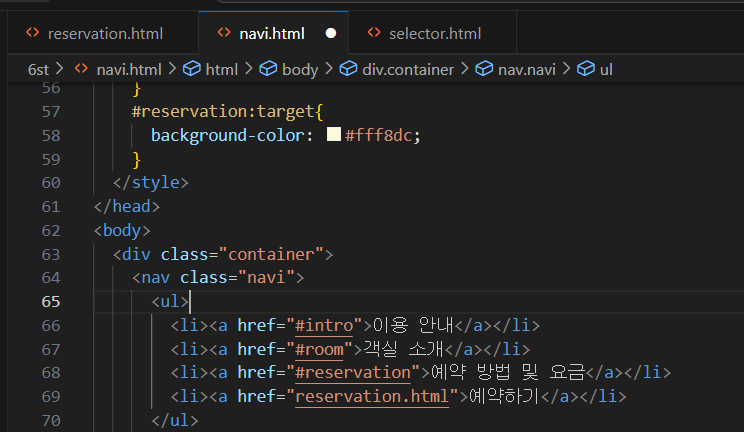
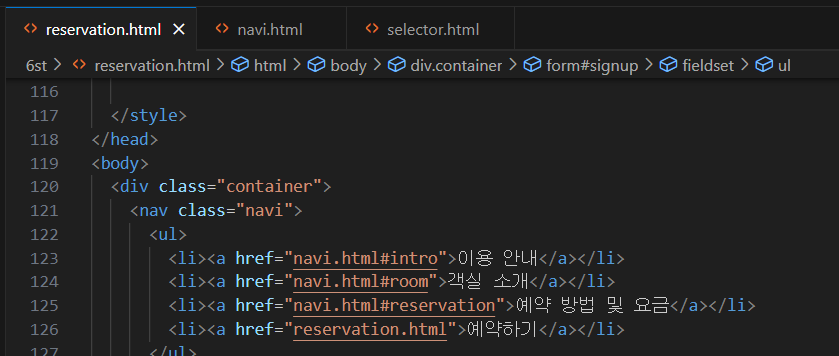
두개의 코드를 연결
이용 안내
Lorem ipsum dolor sit amet consectetur, adipisicing elit. Voluptas quos inventore officia molestias alias fuga totam qui assumenda natus, voluptatibus dicta dolores impedit, velit in? Dicta eius nesciunt facilis hic.
객실 소개
Lorem ipsum dolor sit amet consectetur, adipisicing elit. Tenetur nam pariatur, quibusdam harum maiores architecto possimus excepturi amet minus saepe doloribus, est ullam hic quaerat quo in, aperiam vero a?
예약 방법 및 요금
Lorem ipsum dolor sit amet consectetur adipisicing elit. Nemo nihil unde cupiditate fugiat corrupti? Ad cumque sequi necessitatibus voluptates temporibus unde, exercitationem fuga modi nulla maxime voluptas nihil possimus facere.
<!DOCTYPE html>
<html lang="en">
<head>
  <meta charset="UTF-8">
  <meta name="viewport" content="width=device-width, initial-scale=1.0">
  <title>Document</title>
  <style>
    .container{
      width: 960px;
      margin: 0 auto;
    }
    .navi{
      width: 960px;
      height: 60px;
      padding-bottom: 10px;
      border-bottom: 2px solid #ccc;
    }
    .navi ul{
      list-style: none;
      padding-top: 10px;
      padding-bottom: 5px;
    }
    .navi ul li{
      float: left;
      width: 150px;
      padding: 10px;
    }
    .navi a:link, .navi a:visited{
      /* 방문한 링크와 방문하지 않은 링크를 설정 */
      font-size: 14px;
      color: #000;
      padding: 10px;
      text-decoration: none; /*밑줄 없앰*/
      text-align: center;
    }
    .navi a:hover, .navi a:focus{
      background-color: #222;
      color: #fff;
    }
    .navi a:active{
      background-color: #f00;
    }
    .contents{
      margin: 30px auto;
      width: 400px;
      padding: 20px;
      border: 1px solid #222;
      border-radius: 5px;
    }
    #intro:target{
      background-color: #0069e0;
      color: #fff;
    }
    #room:target{
      background-color: #ff9844;
    }
    #reservation:target{
      background-color: #fff8dc;
    }
  </style>
</head>
<body>
  <div class="container">
    <nav class="navi">
      <ul>
        <li><a href="#intro">이용 안내</a></li>
        <li><a href="#room">객실 소개</a></li>
        <li><a href="#reservation">예약 방법 및 요금</a></li>
        <li><a href="reservation.html">예약하기</a></li>
      </ul>
    </nav>
  <div id="intro" class="contents">
    <h2>이용 안내</h2>
    <p>Lorem ipsum dolor sit amet consectetur, adipisicing elit. Voluptas quos inventore officia molestias alias fuga totam qui assumenda natus, voluptatibus dicta dolores impedit, velit in? Dicta eius nesciunt facilis hic.</p>
  </div>
  <div id="room" class="contents">
    <h2>객실 소개</h2>
    <p>Lorem ipsum dolor sit amet consectetur, adipisicing elit. Tenetur nam pariatur, quibusdam harum maiores architecto possimus excepturi amet minus saepe doloribus, est ullam hic quaerat quo in, aperiam vero a?</p>
  </div>
  <div id="reservation" class="contents">
    <h2>예약 방법 및 요금</h2>
    <p>Lorem
      ipsum dolor sit amet consectetur adipisicing elit. Nemo nihil unde cupiditate fugiat corrupti? Ad cumque sequi necessitatibus voluptates temporibus unde, exercitationem fuga modi nulla maxime voluptas nihil possimus facere.</p>
  </div>
  </div>
</body>
</html>
<!DOCTYPE HTML>
<html lang="ko">
<head>
<meta charset="utf-8">
<title>회원 가입</title>
<style>
.container {
width: 960px;
margin : 0 auto;
}
.navi{
width: 960px;
height: 60px;
padding-bottom: 10px;
border-bottom: 2px solid #ccc;
}
.navi ul{
list-style: none;
padding-top: 10px;
padding-bottom: 5px;
}
.navi ul li {
display: inline-block;
width: 150px;
padding: 10px;
}
.navi a:link, .navi a:visited {
font-size: 14px;
padding: 10px;
text-decoration: none; /* 밑줄 없음 */
}
.navi a:hover, .navi a:focus {
background-color: #222; /* 배경 색 */
color: #fff; /* 글자 색 */
}
.navi a:active {
background-color: #f00; /* 배경 색 */
}
#signup {
background: #fff;
border: 1px solid #222;
border-radius: 5px;
padding: 20px;
width: 400px;
margin: 30px auto;
}
#signup fieldset {
border: 1px solid #ccc;
margin-bottom: 30px;
}
#signup legend {
font-size: 16px;
font-weight: bold;
padding-left: 5px;
padding-bottom: 10px;
}
#signup ul li {
line-height: 30px;
list-style: none;
padding: 5px 10px;
margin-bottom: 2px;
}
#signup label[for="fullname"], label[for="tel"] {
float: left;
font-size: 13px;
width: 60px;
}
/* #signup fieldset:first-of-type label {
float: left;
font-size: 13px;
width: 60px;
} */
/* #signup input[type=text], input[type=tel] { 텍스트와 전화번호 필드에만 스타일 적용하는 코드
border: 1px solid #ccc;
border-radius: 3px;
padding: 5px;
width: 200px;
} */
#signup input:not([type=radio]) {
border: 1px solid #ccc;
border-radius: 3px;
padding: 5px;
width: 200px;
}
#signup input:not([type=radio]):hover{
border-color: #f00;
}
#signup input:checked + label{
/* input 요소에 checked 속성이 추가되었을 때 label 요소의 스타일일 */
color: red;
font-weight: bold;
}
#signup button {
border: 1px solid #222;
border-radius: 20px;
display: block;
font: 16px 맑은고딕,굴림,돋움;
letter-spacing: 1px;
margin: auto;
padding: 7px 25px;
}
</style>
</head>
<body>
<div class="container">
<nav class="navi">
<ul>
<li><a href="navi.html#intro">이용 안내</a></li>
<li><a href="navi.html#room">객실 소개</a></li>
<li><a href="navi.html#reservation">예약 방법 및 요금</a></li>
<li><a href="reservation.html">예약하기</a></li>
</ul>
</nav>
<form id="signup">
<fieldset>
<legend>개인 정보</legend>
<ul>
<li>
<label for="fullname">이름</label>
<input id="fullname" name="fullname" type="text" required>
</li>
<li>
<label for="tel">연락처</label>
<input id="tel" name="tel" type="tel">
</li>
</ul>
</fieldset>
<fieldset>
<legend>객실 형태</legend>
<ul>
<li>
<input type="radio" name="room" id="basic">
<label for="basic">기본형(최대 2인)</label>
</li>
<li>
<input type="radio" name="room" id="family">
<label for="family">가족형(최대 8인)</label>
</li>
</ul>
</fieldset>
<button type="submit"> 제출 </button>
</form>
</div>
</body>
</html>
'대우개발원 수업 내용 > css로 웹 페이지 꾸미기' 카테고리의 다른 글
| CSS 6일차 - float / clear (1) | 2025.12.11 |
|---|---|
| CSS 5일차 background / position / z-index (0) | 2025.12.10 |
| CSS 4일차 - 박스 모델을 구성하는 속성 / 지금까지 배운 html+css 정리 (0) | 2025.12.09 |
| CSS 3일차 (0) | 2025.12.08 |
| CSS 1일차 (1) | 2025.12.04 |