CSS 6일차 - float / clear
2025. 12. 11. 21:03ㆍ대우개발원 수업 내용/css로 웹 페이지 꾸미기
반응형
float 속성
형식
float: <속성값>;
속성값 설명
- none
float 속성을 적용하지 않음. 기본 배치 흐름을 그대로 따름. - left
요소를 문서 흐름에서 분리하여 왼쪽에 띄워 배치하고, 뒤따르는 요소들은 그 주변을 자연스럽게 흐르듯 배치됨. - right
요소를 문서 흐름에서 분리하여 오른쪽에 띄워 배치하고, 뒤따르는 요소들은 그 주변을 자연스럽게 흘러가며 배치됨.
float 속성 사용 시 주의점
float가 적용된 요소는 원래 차지하던 위치나 부모 요소의 높이를 보장하지 않음.
따라서 레이아웃이 의도치 않게 무너질 수 있으므로 후속 요소에 clear 속성을 적절히 사용해야 함.
clear 속성
float 속성의 영향을 받지 않고 요소를 정상적인 문서 흐름에 맞게 배치하기 위해 사용함.
형식
clear: <속성값>;
속성값 설명
- left
왼쪽 방향 float의 영향을 제거하여 float된 요소 아래로 내려가 배치됨. - right
오른쪽 방향 float의 영향을 제거함. - both
좌우 float의 영향을 모두 제거하여 float된 요소들 아래로 완전히 내려가 배치됨.
두 방향 모두 무시해야 하는 경우 가장 많이 사용됨.
Emmet을 이용한 더미 텍스트 입력
Emmet 기능을 사용하면 HTML 작성 시 빠르게 더미 텍스트를 생성할 수 있음.
기본 사용
- lorem 입력 후 Tab 또는 Enter
→ 기본 길이의 더미 문장 생성
단어 수 지정
- lorem10
→ 10개의 단어로 구성된 더미 텍스트 생성
단락 수 지정
- lorem*3
→ 더미 텍스트 3단락 생성
float 속성
더보기

<!DOCTYPE html>
<html lang="en">
<head>
  <meta charset="UTF-8">
  <meta name="viewport" content="width=device-width, initial-scale=1.0">
  <title>float-ex1</title>
  <style>
    .container {
      width: 400px;
      height: 210px;
      padding: 1rem;
      margin: 0 auto;
      border: 1px solid black;
      background-color: #ccc;
    }
    .box {
      width: 100px;
      height: 100px;
      /* float: left; */
    }
    .red-box {
      background-color: red;
      float: left;
      /* display: none; */
    }
    .blue-box {
      background-color: blue;
      float: right;
    }
    .green-box {
      background-color: green;
      clear: both;
      /* float 속성에 영향을 미치지 않게 하는 코드 */
    }
    img {
      float: left;
      margin: 0 10px 10px 0;
    }
  </style>
</head>
<body>
  <div class="container">
    <div class="box red-box"></div>
    <div class="box blue-box"></div>
    <div class="box green-box"></div>
  </div>
  <div>
    <img src="/images/bg3.png" alt="1">
    <p>Lorem ipsum dolor sit amet, consectetur adipisicing elit. Perferendis expedita quos ad officia iste vero enim provident necessitatibus! Alias error labore accusantium voluptatibus perspiciatis aperiam accusamus assumenda vel sapiente animi. Lorem, ipsum dolor sit amet consectetur adipisicing elit. Suscipit similique alias eligendi perferendis inventore, mollitia blanditiis minus quia facilis illum? Nobis quam ducimus debitis consequuntur nostrum, ipsa rerum autem magnam? Lorem ipsum dolor sit amet consectetur adipisicing elit. Officiis, perspiciatis voluptas incidunt sed harum temporibus laudantium optio quibusdam vel dicta? Voluptate quasi fugit itaque. Assumenda sapiente tempore excepturi ducimus sint!Lorem Lorem ipsum dolor, sit amet consectetur adipisicing elit. Vitae rem amet nesciunt ipsa ipsam natus laudantium? Quam magni veritatis est cumque, expedita dolores. Minima quam rerum soluta impedit dolore corporis. Lorem ipsum dolor sit amet consectetur, adipisicing elit. Veniam laudantium dolor rem, dolorum quibusdam non, facilis explicabo eligendi culpa veritatis, maiores cumque vero voluptatibus voluptates similique molestias ullam! Fugit, officiis! Lorem, ipsum dolor sit amet consectetur adipisicing elit. Ratione, animi. Assumenda, temporibus pariatur quos eligendi nisi architecto alias in sapiente a hic quas consectetur repellat ipsum atque. Possimus, recusandae accusantium. Lorem ipsum dolor sit amet, consectetur adipisicing elit. Doloribus illum dignissimos fuga tempora error, nulla dicta suscipit provident quisquam voluptas mollitia, numquam amet laborum. Saepe sapiente veritatis eius aperiam animi! Lorem ipsum dolor sit amet, consectetur adipisicing elit. Quod numquam sit, beatae facilis dolore esse eveniet, voluptatum iure vero ducimus molestiae, commodi modi itaque laudantium consectetur maxime illum aut sapiente!</p>
  </div>
</body>
</html>
float 및 clear 사용해서 layout.html, layout.css 만들기1
더보기

html
<!DOCTYPE html>
<html lang="en">
<head>
  <meta charset="UTF-8">
  <meta name="viewport" content="width=device-width, initial-scale=1.0">
  <title>CSS 레이아웃 - 2단 레이아웃</title>
  <link rel="stylesheet" href='/css/layout.css'>
</head>
<body>
  <div id="container">
    <header id="header">
    <h1>사이트 제목</h1>
    </header>
    <aside id="sidebar">
    <h2>사이드바</h2>
    </aside>
    <section id="contents">
    <h2>본문</h2>
    </section>
    <footer id="footer">
    <h2>푸터</h2>
    <footer>
    </div>
</body>
</html>
css
* {
  margin: 0;
  padding: 0;
  box-sizing: border-box; /* 테두리까지 포함해서 박스 모델 너비로 계산 */
}
#container {
  width: 1200px;
  margin: 20px auto; /*내용을 화면 가운데 배치하도록 좌우 마진을 auto로 */
}
#header {
  width: 100%;
  /* = width: 1200px; */
  height: 120px;
  background-color: lightgray;
}
#sidebar {
  width: 300px;
  height: 600px;
  float: left;
  background-color: aliceblue;
}
#contents {
  width: 900px;
  height: 600px;
  margin: 0 auto;
  background-color: aqua;
  float: left;
  /* float: right;도 동일하다 앞에서 마진0 패딩0으로 설정했고
  컨테이너 값과 동일하기 때문에 가능한 것 */
}
h2 {
  margin: 0;
  padding: 0;
}
footer {
  width: 1200px;
  /* = with:100%; */
  height: 100px;
  clear:both;/*플로팅 해제*/
  background-color: gray;
}
float 및 clear 사용해서 layout_3col.html, layout_3col.css 만들기
더보기
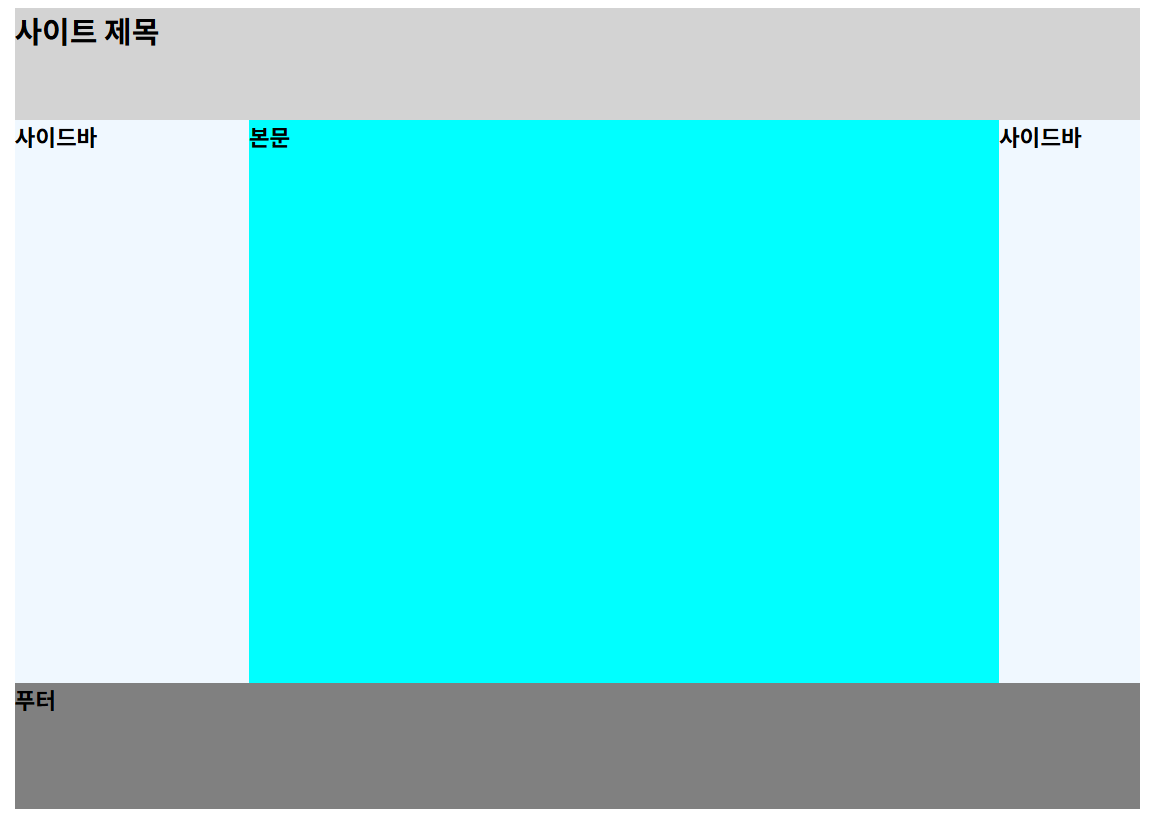
html
<!DOCTYPE html>
<html lang="en">
<head>
  <meta charset="UTF-8">
  <meta name="viewport" content="width=device-width, initial-scale=1.0">
  <title>CSS 레이아웃 - 3단 레이아웃</title>
  <link rel="stylesheet" href='/css/layout_3col.css'>
</head>
<body>
  <div id="container">
    <header id="header">
    <h1>사이트 제목</h1>
    </header>
    <aside id="sidebar">
    <h2>사이드바</h2>
    </aside>
    <section id="contents">
    <h2>본문</h2>
    </section>
    <aside id="sidebar2">
    <h2>사이드바</h2>
    </aside>
    <footer id="footer">
    <h2>푸터</h2>
    <footer>
    </div>
</body>
</html>
css
* {
  margin: 0;
  padding: 0;
  box-sizing: border-box; /* 테두리까지 포함해서 박스 모델 너비로 계산 */
}
#container {
  width: 1200px;
  margin: 20px auto; /*내용을 화면 가운데 배치하도록 좌우 마진을 auto로 */
}
#header {
  width: 100%;
  /* = width: 1200px; */
  height: 120px;
  background-color: lightgray;
}
#sidebar {
  width: 250px;
  height: 600px;
  float: left;
  background-color: aliceblue;
}
#contents {
  width: 800px;
  height: 600px;
  margin: 0 auto;
  background-color: aqua;
  float: left;
  /* float: right;도 동일하다 앞에서 마진0 패딩0으로 설정했고
  컨테이너 값과 동일하기 때문에 가능한 것 */
}
#sidebar2 {
  width: 150px;
  height: 600px;
  float: left;
  /* float: right; 둘다 가능 */
  background-color: aliceblue;
}
h2 {
  margin: 0;
  padding: 0;
}
footer {
  width: 1200px;
  /* = with:100%; */
  height: 100px;
  clear:both;/*플로팅 해제*/
  background-color: gray;
}
inlineMenu.html
더보기

<!DOCTYPE html>
<html lang="ko">
<head>
  <meta charset="UTF-8">
  <title>diaplay 속성</title>
  <style>
    * {
    margin: 0;
    padding: 0;
    box-sizing: border-box;
    }
    a {
        color:inherit;
        text-decoration: none;
    }
    /* 노말라이즈 끝 */
    /* 커스텀 */
    .container {
        /* width: 50%;
        margin:50px auto; */
        text-align:center;
        margin: 50px;
    }
    ul {
        background-color:#afafaf;
        text-align:center;
        border-radius: 10px;
        padding: 10px 20px;
        display: inline-block;
    }
    ul li {
        display: inline-block;
        line-height: 3;
    }
    ul li a {
        padding: 20px;
        font-weight: bold;
    }
   ul li a:hover {
	color: white
   }
  </style>
</head>
<body>
  <div class="container">
    <!-- 메뉴 -->
    <ul>
        <!-- 메뉴 아이템 -->
        <li>
            <!-- 메뉴 아이템 텍스트(클릭하면 이동해야 하므로 a태그 사용)-->
            <a href="#">Home</a>
        </li>
        <li>
            <a href="#">Tutorials</a>
        </li>
        <li>
            <a href="#">Articles</a>
        </li>
        <li>
            <a href="#">Inspiration</a>
        </li>
    </ul>
  </div>
</body>
</html>
float 속성 사용해서 이름_boxmodel.html 만들기
더보기
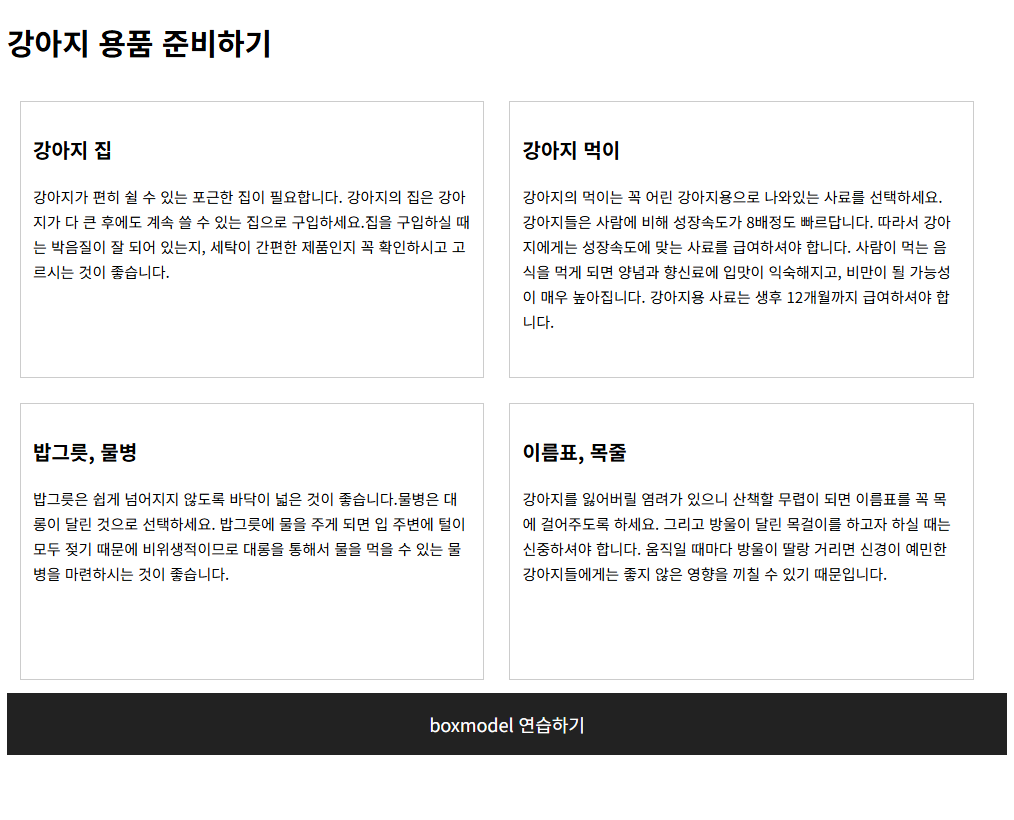
<!doctype html>
<html lang="ko">
<head>
	<meta charset="utf-8">
	<title>HTML5 레이아웃</title>
  <style>
	  section{
			width:800px;
			margin: 0 auto;
		}
		h2{
			font-size:1.5em;
		}
		h3 {
			font-size:1.0em;
		}
		p {
			line-height:20px;
			font-size:12px;
		}
		article{
			float:left;
			width:350px;
			height:200px;
			margin:10px;
			padding:10px;
			border:1px solid #ccc;
		}
		footer {
			clear:left;
			width:100%;
			height:50px;
			background-color:#222;
		}
		footer p{
			color:#fff;
			font-size:0.9em;
			text-align: center;
			line-height: 50px;
		}
</style>
</head>
<body>
	<section>
		<h2>강아지 용품 준비하기</h2>
		<article>
			<h3>강아지 집 </h3>
			<p>강아지가 편히 쉴 수 있는 포근한 집이 필요합니다. 강아지의 집은 강아지가 다 큰 후에도 계속 쓸 수 있는 집으로 구입하세요.집을 구입하실 때는 박음질이 잘 되어 있는지, 세탁이 간편한 제품인지 꼭 확인하시고 고르시는 것이 좋습니다.</p>
		</article>
		<article>
			<h3>강아지 먹이 </h3>
			<p>강아지의 먹이는 꼭 어린 강아지용으로 나와있는 사료를 선택하세요. 강아지들은 사람에 비해 성장속도가 8배정도 빠르답니다. 따라서 강아지에게는 성장속도에 맞는 사료를 급여하셔야 합니다. 사람이 먹는 음식을 먹게 되면 양념과 향신료에 입맛이 익숙해지고, 비만이 될 가능성이 매우 높아집니다. 강아지용 사료는 생후 12개월까지 급여하셔야 합니다.</p>
		</article>
		<article>
			<h3>밥그릇, 물병 </h3>
			<p>밥그릇은 쉽게 넘어지지 않도록 바닥이 넓은 것이 좋습니다.물병은 대롱이 달린 것으로 선택하세요. 밥그릇에 물을 주게 되면 입 주변에 털이 모두 젖기 때문에 비위생적이므로 대롱을 통해서 물을 먹을 수 있는 물병을 마련하시는 것이 좋습니다.</p>
		</article>
		<article>
			<h3>이름표, 목줄</h3>
			<p>강아지를 잃어버릴 염려가 있으니 산책할 무렵이 되면 이름표를 꼭 목에 걸어주도록 하세요. 그리고 방울이 달린 목걸이를 하고자 하실 때는 신중하셔야 합니다. 움직일 때마다 방울이 딸랑 거리면 신경이 예민한 강아지들에게는 좋지 않은 영향을 끼칠 수 있기 때문입니다.</p>
		</article>
		<footer>
			<p>boxmodel 연습하기</p>
		</footer>
	</section>

</body>
</html>
'대우개발원 수업 내용 > css로 웹 페이지 꾸미기' 카테고리의 다른 글
| CSS 8일차 overflow/플렉스 박스 레이아웃(Flexbox)/그리드 레이아웃 (0) | 2025.12.16 |
|---|---|
| CSS 7일차 전환(transition)/애니메이션(animation)/변형(transform) /overflow (0) | 2025.12.15 |
| CSS 5일차 background / position / z-index (0) | 2025.12.10 |
| CSS 4일차 - 박스 모델을 구성하는 속성 / 지금까지 배운 html+css 정리 (0) | 2025.12.09 |
| CSS 3일차 (0) | 2025.12.08 |