2025. 12. 10. 18:13ㆍ대우개발원 수업 내용/css로 웹 페이지 꾸미기
ppt73~85
background 관련 속성 정리
1. background-color
배경색 지정
형식: background-color:<색상값>;
2. background-image
배경 이미지 삽입
형식: background-image:url("이미지 경로");
3. background-repeat
배경 이미지 반복 여부 지정
형식: background-repeat:<속성값>;
속성값
- no-repeat : 반복하지 않음
- repeat-x : 가로 방향만 반복
- repeat-y : 세로 방향만 반복
- repeat : 가로·세로 모두 반복(기본값)
- round : 이미지가 잘리지 않도록 크기를 자동 조절하며 반복
- space : 이미지가 겹치지 않도록 반복
이미지 사이즈가 맞지 않을 경우
- 크면 잘림
- 작으면 repeat 효과로 여러 개 출력됨
4. background-size
배경 이미지 크기 지정
형식: background-size:auto|cover|contain|<너비 높이>;
속성값
- auto : 원본 크기 유지
- cover : 비율 유지하며 요소를 가득 채우도록 확대/축소(잘릴 수 있음)
- contain : 비율 유지하며 요소 안에 완전히 들어가도록 조정
- <너비 높이> : 직접 값 지정(px, %, 등)
5. background-position
배경 이미지 위치 지정
형식: background-position:<x> <y>;
속성값 예
- 가로: left, center, right
- 세로: top, center, bottom
- 값 직접 지정: px, em, rem, % 등
6. background-attachment
배경 이미지의 스크롤 동작 지정
형식: background-attachment:<속성값>;
속성값
- local : 요소 내부 스크롤과 브라우저 스크롤에 모두 따라 움직임
- scroll : 요소 내부에서는 고정, 브라우저 스크롤에는 따라 이동
- fixed : 요소 내부와 브라우저 모두에서 고정
7. background 속성(단축)
모든 배경 속성을 한 번에 지정
형식 : background: <color> <image> <repeat> <position>/<size> <attachment>;
순서는 상관없으나,
position/size 조합은 반드시 함께 작성해야 함.
position 관련 속성
position
요소의 배치 방식 지정
형식: position:<속성값>;
속성값
- static : 기본 배치(좌표 속성 사용 불가)
- relative : 기본 배치 + 좌표 속성 사용 가능
- absolute : 문서 흐름에서 제거, 부모 기준으로 절대 위치 배치
- fixed : 문서 흐름에서 제거, 화면 기준으로 고정
- sticky : 일정 지점까지는 static처럼, 임계점 이후 fixed처럼 동작
z-index 관련 속성
요소의 z축(겹침 순서) 지정
형식: z-index:<정수>;
- position: static에서는 적용되지 않음
- relative, absolute, fixed, sticky일 때만 적용
- 값이 클수록 위로 배치됨
예시
position: relative;
z-index: 10;
아래는 background 속성을 시각화한 코드
1. background-color
✔ 개념
요소의 배경색을 지정하는 속성.
✔ 형식
background-color: <색상값>;
✔ 시각화
+---------------------------+
|     배경 전체가 색상      |
|     (예: lightblue)       |
+---------------------------+
2. background-image
✔ 개념
요소의 배경에 이미지를 삽입.
✔ 형식
background-image: url("이미지경로");
✔ 시각화
+---------------------------+
|       [ 배경 이미지 ]       |
|    (반복/크기 설정 전)     |
+---------------------------+
3. background-repeat
✔ 개념
이미지를 반복 여부 / 방향을 결정.
✔ 설정값 도식
■ no-repeat
+---------------------------+
|        [IMG]              |
|                           |
+---------------------------+
■ repeat-x
+---------------------------+
| [IMG][IMG][IMG][IMG]     |
|                           |
+---------------------------+
■ repeat-y
+---------------------------+
| [IMG]                     |
| [IMG]                     |
| [IMG]                     |
+---------------------------+
■ repeat
+---------------------------+
| IMG IMG IMG IMG IMG       |
| IMG IMG IMG IMG IMG       |
| IMG IMG IMG IMG IMG       |
+---------------------------+
■ round
+---------------------------+
| [IMG(자동 맞춤)] [IMG]    |
| [IMG]         [IMG]        |
+---------------------------+
■ space
+---------------------------+
| [IMG]   [IMG]   [IMG]     |
|                           |
+---------------------------+
4. background-size
✔ 개념
배경 이미지의 크기를 조절하는 속성.
✔ 설정값 도식
■ auto (원본 크기 유지)
+---------------------------+
|       [원본 IMG]          |
|                           |
+---------------------------+
■ cover (빈 공간 없이 꽉 채움)
+---------------------------+
|   [이미지가 꽉 채우며]    |
|   [일부 잘릴 수도 있음]   |
+---------------------------+
■ contain (전체가 보이도록)
+---------------------------+
|         #########         |
|         #  IMG  #         |
|         #########         |
+---------------------------+
■ 명시적 크기 (예: 120px 120px)
+---------------------------+
|                           |
|      [120x120 IMG]        |
|                           |
+---------------------------+
5. background-position
✔ 개념
배경이미지를 어디에 위치시킬지 지정.
✔ 예시 도식
■ center
+---------------------------+
|                           |
|          [IMG]            |
|                           |
+---------------------------+
■ left top
+---------------------------+
| [IMG]                     |
|                           |
+---------------------------+
■ right bottom
+---------------------------+
|                           |
|                     [IMG] |
+---------------------------+
■ px로 지정 (예: 20px 40px)
+---------------------------+
|                           |
|   (20px,40px 위치에 IMG)  |
|        [IMG]              |
+---------------------------+
6. background-attachment
✔ 개념
스크롤 시 이미지가 고정되거나 이동하는 방식.
✔ 설정값 도식
■ scroll (기본값 – 배경이 같이 움직임)
스크롤 내리면 ↓

+---------------------------+
| [배경 이미지 ↓ 같이 이동] |
+---------------------------+
■ fixed (화면에 고정됨)
스크롤 내리면 ↓

+---------------------------+
| [이미지는 고정됨 (안 움직임)] |
+---------------------------+
🎯 최종 코드 요약
- width: 320px
- height: 240px
- background-image: url(img5.jpg)
- background-repeat: no-repeat
- background-size: 120px 120px
- background-position: center
🎨 최종 결과 화면 도식화 (실제 출력 모습)
<!DOCTYPE html>
<html lang="en">
<head>
  <meta charset="UTF-8">
  <meta name="viewport" content="width=device-width, initial-scale=1.0">
  <title>background-image</title>
  <style>
    div {
      font-size: large;
      color: azure;
      /* width: 160px;
      height: 120px; */
      width: 320px;
      height: 240px;
      border: 1px solid black;
      background-image: url('/images/img5.jpg');
      /* 이미지의 사이즈가 맞지 않을 때 크면 잘리고 작으면 여러개가 나옴 */
      /* =기본 속성이 반복되는 repeat, repeat-x는 가로로만 반복 */
      /* round 속성은 사이즈에 맞게 넣어준다 */
      background-repeat:no-repeat;
      /* no-repeat 반복 x */
      /* background-size: auto; */
      /* 알아서 채워줌 */
      /* background-size: cover; */
      /* 가로 세로 비율은 유지시키면서 꽉 채워줌 > 이미지를 늘려서 채움 여백 x*/
      /* background-size: contain; */
      /* 여백이 있음, repeat속성을 주면 반복이 되서 표시가 된다. */
      background-size: 120px 120px;
      /* 직접 사이즈를 지정 */
      background-position: center;
      /* position을 한개만 쓰면 x, y두 값 모두 센터를 주라는 뜻 */
    }
  </style>
</head>
<body>
  <div>배경으로 이미지를 사용</div>
</body>
</html>
320px × 240px 박스 내부
+--------------------------------------------------+
| |
| [ 120×120 IMG ] |
| (가운데 위치함) |
| |
+--------------------------------------------------+
✔ 이미지 1장만 표시됨 (no-repeat)
✔ 크기는 120×120으로 줄어듦
✔ 정가운데 배치됨
✔ div는 320×240이므로 주변에 여백이 크게 생김
✔ 배경색 없음(background-color 미사용)
background 배경 이미지 속성
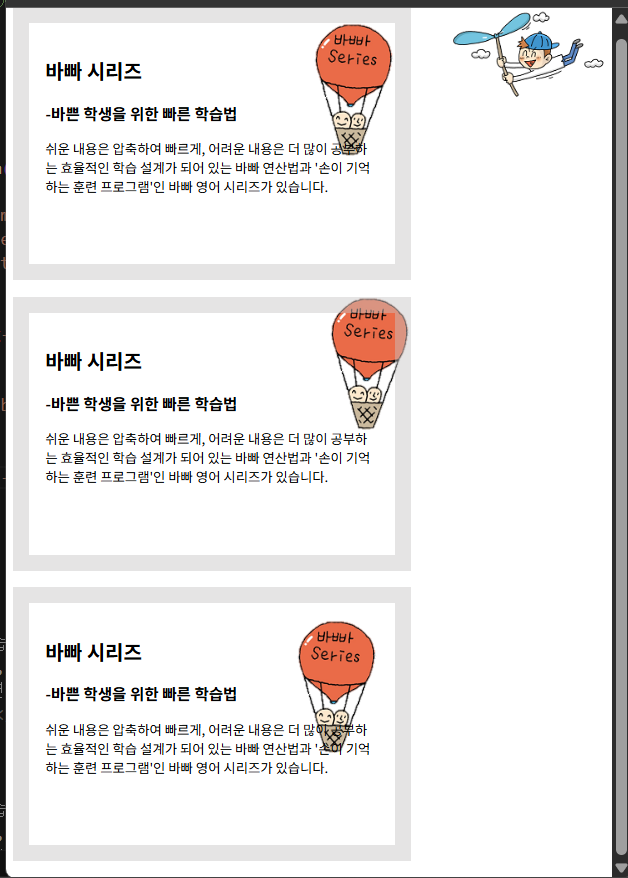
<!DOCTYPE html>
<html lang="en">
<head>
  <meta charset="UTF-8">
  <meta name="viewport" content="width=device-width, initial-scale=1.0">
  <title>배경 이미지</title>
  <style>
    body {
      background-image: url('/images/bg2.png');
      background-repeat: no-repeat;
      background-position: right top;
      /* background-attachment: fixed;
      1. 스크롤에 고정
      background-attachment: local;
      2. 스크롤일 때 같이 따라오지 않는다 */
      /* background-attachment: scroll; */
    }
    div {
      width: 400px;
      height: 250px;
      padding: 20px;
      border: 20px solid rgba(199, 196, 196, 0.459);
      margin-bottom: 20px;
      background-image: url('/images/bg3.png');
      background-repeat: no-repeat;
      background-position: right top;
    }
    #bg1 {
      background-origin:padding-box;
    }
    #bg2 {
      background-origin:border-box
    }
    #bg3 {
      background-origin:content-box;
    }
  </style>
</head>
<body>
  <div id="bg1">
  <h2>바빠 시리즈</h2>
  <h3>-바쁜 학생을 위한 빠른 학습법</h3>
  <p>쉬운 내용은 압축하여 빠르게, 어려운 내용은 더 많이 공부하는 효율적인
    학습 설계가 되어 있는 바빠 연산법과 '손이 기억하는 훈련 프로그램'인
    바빠 영어 시리즈가 있습니다.</p>
</div>
<div id="bg2">
  <h2>바빠 시리즈</h2>
  <h3>-바쁜 학생을 위한 빠른 학습법</h3>
  <p>쉬운 내용은 압축하여 빠르게, 어려운 내용은 더 많이 공부하는 효율적인
    학습 설계가 되어 있는 바빠 연산법과 '손이 기억하는 훈련 프로그램'인
    바빠 영어 시리즈가 있습니다.</p>
</div>
<div id="bg3">
  <h2>바빠 시리즈</h2>
  <h3>-바쁜 학생을 위한 빠른 학습법</h3>
  <p>쉬운 내용은 압축하여 빠르게, 어려운 내용은 더 많이 공부하는 효율적인
    학습 설계가 되어 있는 바빠 연산법과 '손이 기억하는 훈련 프로그램'인
    바빠 영어 시리즈가 있습니다.</p>
</div>
</body>
</html>
background 속성으로 한 번에 지정하기 - 태그 속성의 순서는 상관 없으나, <position 속성값/size 속성값>은 같이 써야한다
• 모든 배경 속성을 한 번에 사용할 수 있는 단축 속성
형식 background:<color 속성값> <image 속성값> <repeat 속성값>
<position 속성값/size 속성값> <attachment 속성값>;
    body {
      background: url('/images/bg2.png') no-repeat right top fixed;
      /* 위에 여러줄을 한줄로 표현 */
    }
position
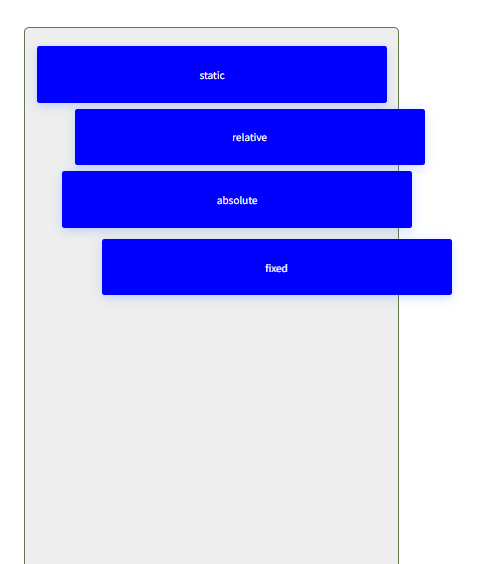
<!DOCTYPE html>
<html lang="ko">

<head>
  <meta charset="UTF-8">
  <meta name="viewport" content="width=device-width, initial-scale=1.0">
  <title>position</title>
  <style>
    * {
      margin: 0;
      padding: 0;
      box-sizing: border-box;
    }

    .item-wrap {
      position: relative;
      background-color: #eee;
      width: 600px;
      height: 1800px;
      padding: 20px;
      margin: auto;
      margin-top: 100px;
      border-radius: 8px;
      border: 1px solid #667949;
    }

    .item {
      width: 560px;
      color: white;
      padding: 20px 10px;
      border-radius: 4px;
      text-align: center;
      background-color: blue;
      line-height: 50px;
      margin-top: 10px;
      border-color: rgb(8, 6, 2);
      box-shadow: 0 4px 16px rgba(0, 79, 255, 0.2);
    }

    .static {
      position: static;
      left: 60px;
    }

    .relative {
      position: relative;
      left: 60px;
    }

    .absolute {
      position: absolute;
      left: 60px;
    }

    .fixed {
      position: fixed;
      top: 430px;
      /* left: 60px; */
      right: 100px;
    }
  </style>
</head>

<body>
  <div class="item-wrap">
    <div class="item static"> static</div>
    <div class="item relative"> relative</div>
    <div class="item absolute"> absolute</div>
    <div class="item fixed"> fixed</div>
  </div>

</body>

</html>
Relative 상대배치
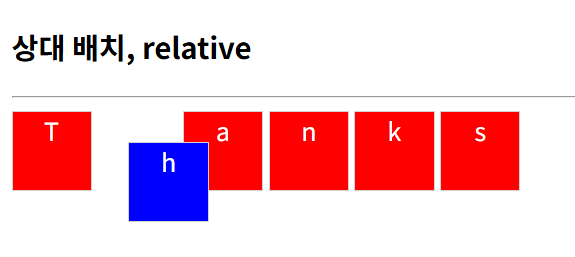
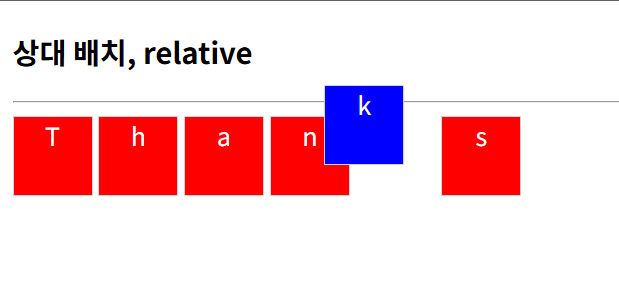
<!DOCTYPE html>
<html lang="en">
<head>
  <meta charset="UTF-8">
  <meta name="viewport" content="width=device-width, initial-scale=1.0">
  <title>relative</title>
</head>
<style>
  div {
    display: inline-block;
    height: 50px;
    width: 50px;
    border: 1px solid lightgray;
    text-align: center;
    color: white;
    background: red;
  }
  #down:hover {
    position: relative;
    left: 20px;
    top: 20px;
    background: blue;
  }
  #up:hover {
    position: relative;
    right: 20px;
    bottom: 20px;
    background: blue;
  }
</style>
<body>
  <h3>상대 배치, relative</h3>
  <hr>
  <div>T</div>
  <div id="down">h</div>
  <div >a</div>
  <div>n</div>
  <div id="up">k</div>
  <div>s</div>
</body>
</html>
종합 문제
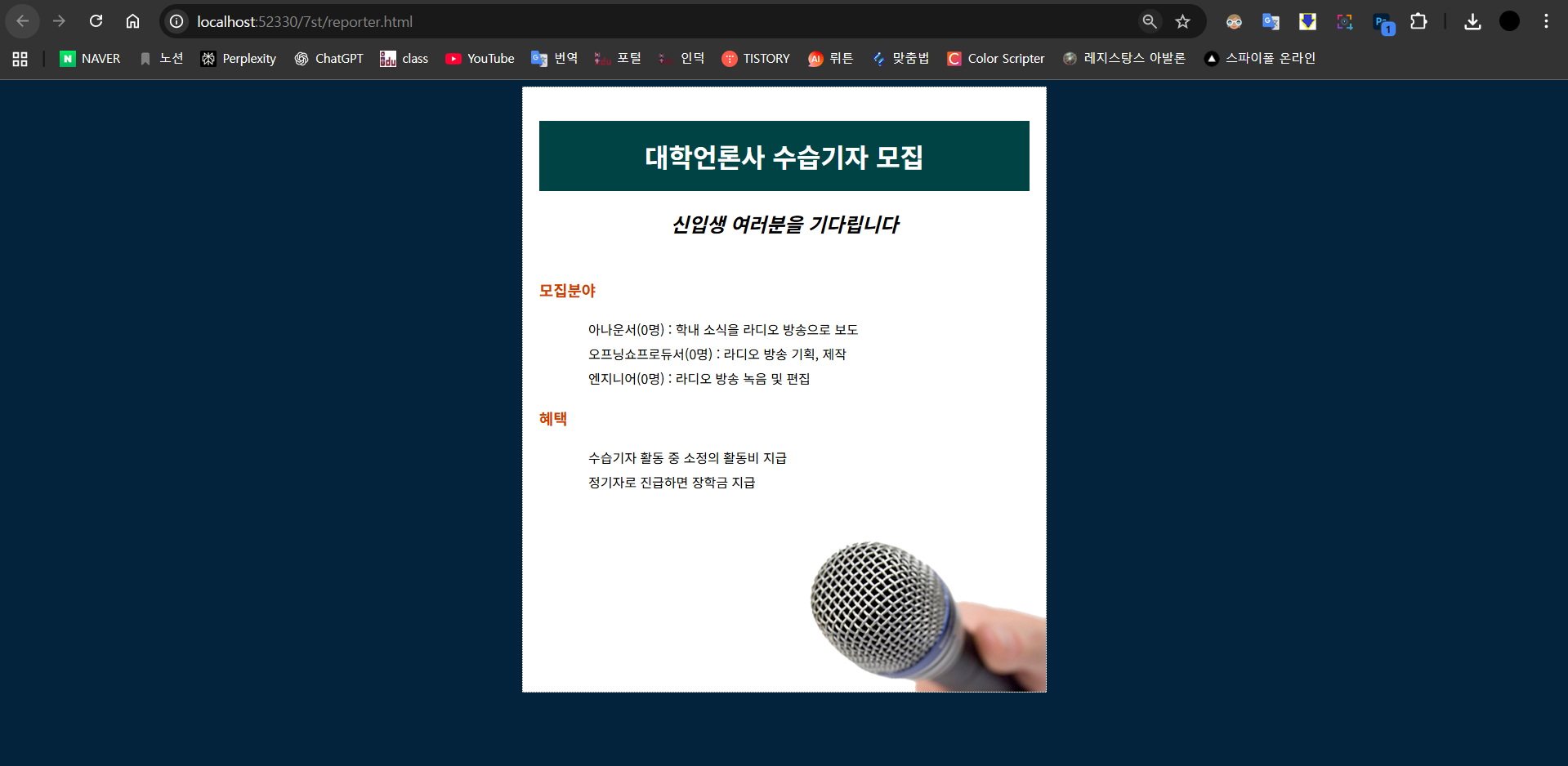
<!doctype html>
<html>
  <head>
    <meta charset="utf-8">
    <meta name="viewport" content="width=device-width, initial-scale=1, minimum-scale=1, maximum-scale=1, user-scalable=no">
    <title>수습기자 모집</title>
    <style>
			body {
				background-color:#02233b;
			}
			#container{
				margin:0 auto;
				width:600px;
				height:700px;
				border:1px dotted gray;
				padding:20px;
				background: url('/images/mic.png') no-repeat right bottom;
				background-color: #fff;
			}

			h1 {
				background-color:#004344;
				color:white;
				text-align:center;
				padding:20px;
			}
			h2 {
				text-align:center;
				font-style:italic;
				margin-bottom:50px;
			}
			h3 {
				color:#cf3b00;
			}
			ul{
				margin:20px;
				list-style-type:none;
			}
			li {
				line-height:30px;
			}
    </style>
  </head>
  <body>
		<div id="container">
			<h1>대학언론사 수습기자 모집</h1>
			<h2>신입생 여러분을 기다립니다</h2>
			<h3>모집분야</h3>
			<ul>
				<li>아나운서(0명) : 학내 소식을 라디오 방송으로 보도</li>
				<li>오프닝쇼프로듀서(0명) : 라디오 방송 기획, 제작</li>
				<li>엔지니어(0명) : 라디오 방송 녹음 및 편집 </li>
			</ul>
			<h3>혜택</h3>
			<ul>
				<li>수습기자 활동 중 소정의 활동비 지급</li>
				<li>정기자로 진급하면 장학금 지급</li>
			</ul>
		</div>
  </body>
</html>
z-index속성

<!DOCTYPE html>
<html lang="en">
<head>
  <meta charset="UTF-8">
  <meta name="viewport" content="width=device-width, initial-scale=1.0">
  <title>z-index</title>
  <style>
    .box{
      width: 100px;
      height: 100px;
    }
    .red-box {
      background-color: red;
      /* position: relative;
      z-index: 10; */
    }
    .green-box {
      background-color: green;
      position: absolute;
      left: 0;
      top: 0;
    }
  </style>
</head>
<body>
  <div class="box red-box"></div>
  <div class="box green-box"> </div>
</body>
</html>
<!DOCTYPE html>
<html lang="en">
<head>
  <meta charset="UTF-8">
  <meta name="viewport" content="width=device-width, initial-scale=1.0">
  <title>z-index</title>
  <style>
    .box{
      width: 100px;
      height: 100px;
    }
    .red-box {
      background-color: red;
      position: relative;
      z-index: 10;
    }
    .green-box {
      background-color: green;
      position: absolute;
      left: 0;
      top: 0;
    }
  </style>
</head>
<body>
  <div class="box red-box"></div>
  <div class="box green-box"> </div>
</body>
</html>
• z-index 값은 position의 기본인 static이면 적용 x relative나 다른 속성 써야함
• 태그의 순서에 따라 z축의 순서가 결정이 된다
position: relative;
z-index: 10;
이 코드를 css에 추가하면 뒤에 있던게 앞으로 오게 된다
z-index 속성2
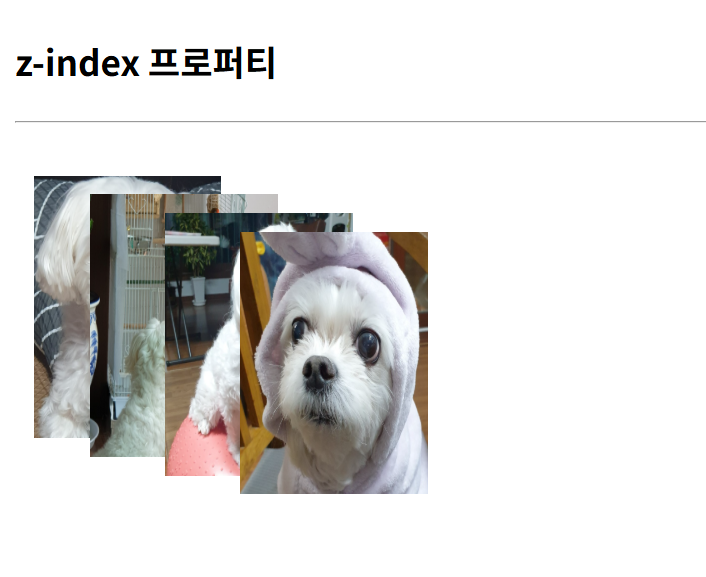
<!DOCTYPE html>
<html lang="en">
<head>
  <meta charset="UTF-8">
  <meta name="viewport" content="width=device-width, initial-scale=1.0">
  <title>Document</title>
  <style>
    div { position: absolute;}
    img { position: absolute;}
    #som1 { z-index: -3; left: 10px; top: 20px;}
    #som2 { z-index: 1; left: 40px; top: 30px;}
    #som3 { z-index: 3; left: 80px; top: 40px;}
    #som4 { z-index: 7; left: 120px; top: 50px;}
  </style>
</head>
<body>
  <h3>z-index 프로퍼티</h3>
  <hr>
  <div>
    <img id="som1" src="/images/som1.jpg"
      width="100" height="140" alt="솜사진1">
      <img id="som2" src="/images/som2.jpg"
      width="100" height="140" alt="솜사진2">
      <img id="som3" src="/images/som3.jpg"
      width="100" height="140" alt="솜사진3">
      <img id="som4" src="/images/som4.jpg"
      width="100" height="140" alt="솜사진4">
  </div>
</body>
</html>'대우개발원 수업 내용 > css로 웹 페이지 꾸미기' 카테고리의 다른 글
| CSS 7일차 전환(transition)/애니메이션(animation)/변형(transform) /overflow (0) | 2025.12.15 |
|---|---|
| CSS 6일차 - float / clear (1) | 2025.12.11 |
| CSS 4일차 - 박스 모델을 구성하는 속성 / 지금까지 배운 html+css 정리 (0) | 2025.12.09 |
| CSS 3일차 (0) | 2025.12.08 |
| CSS 2일차 (0) | 2025.12.05 |