2025. 11. 18. 17:44ㆍiOS 기초/수업 내용 및 수업 후 과제

기말고사에 자주 나오는 내용 위 아래 둘다
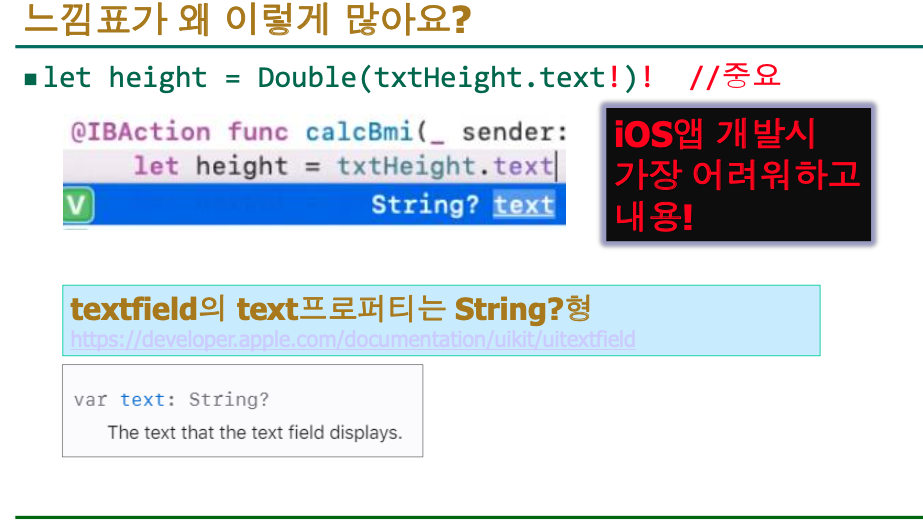
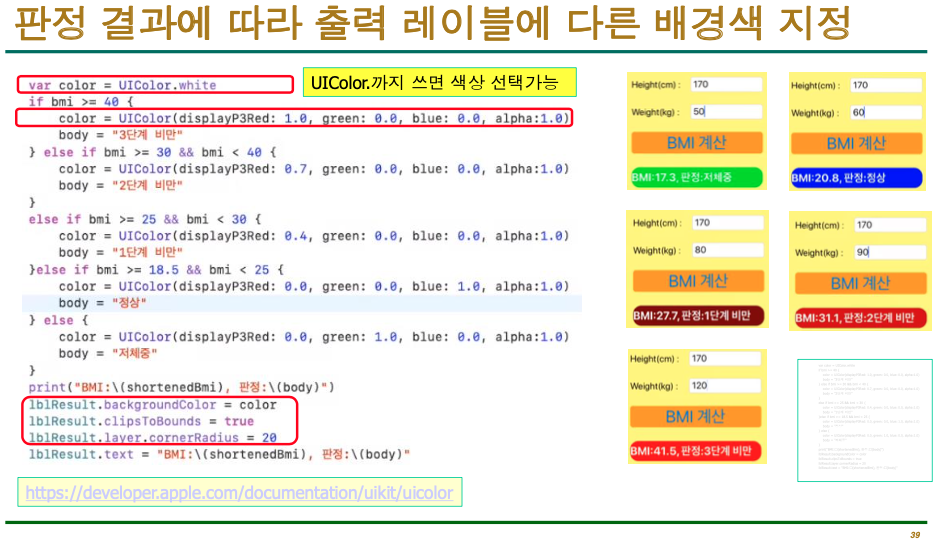

시험에 잘 나오는 부분
모서리를 깎을 때 쓰는 코드
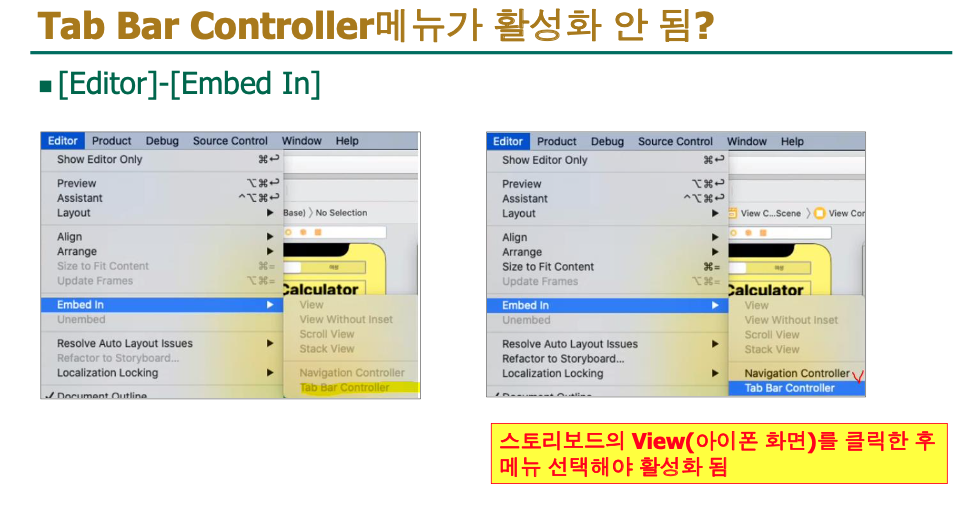
tapbar controller 하는 두가지 방법
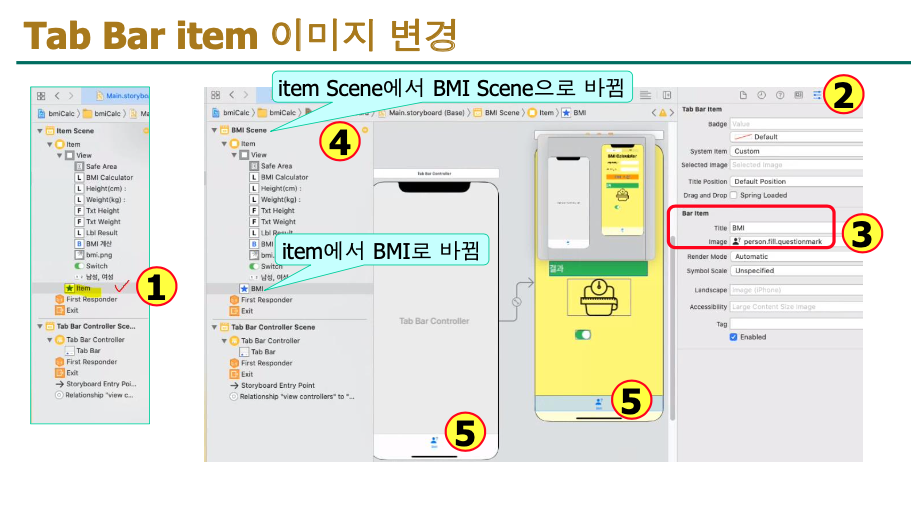
scnen 이름 변경
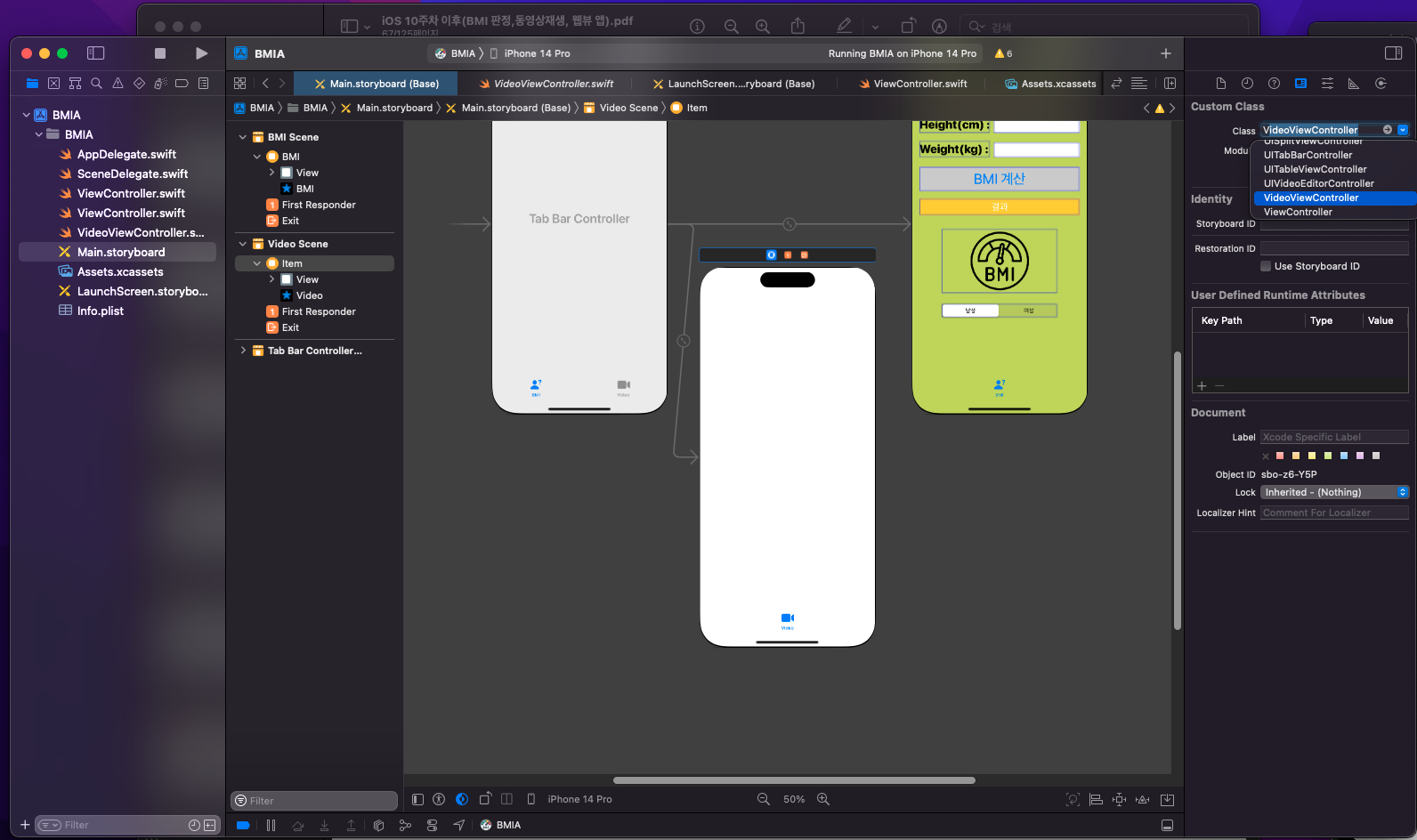

identity inspector - 시험에 나옴
두가지 용도
1. 스토리보드 오브젝트(씬/뷰/컨트롤러)의 클래스 지정
2. Video Scene 스토리보드와 VideoViewController클래스 연결

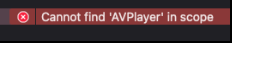
프레임워크를 추가 안해서(import를 안해서 일어난 오류) 시험에 잘 나옴
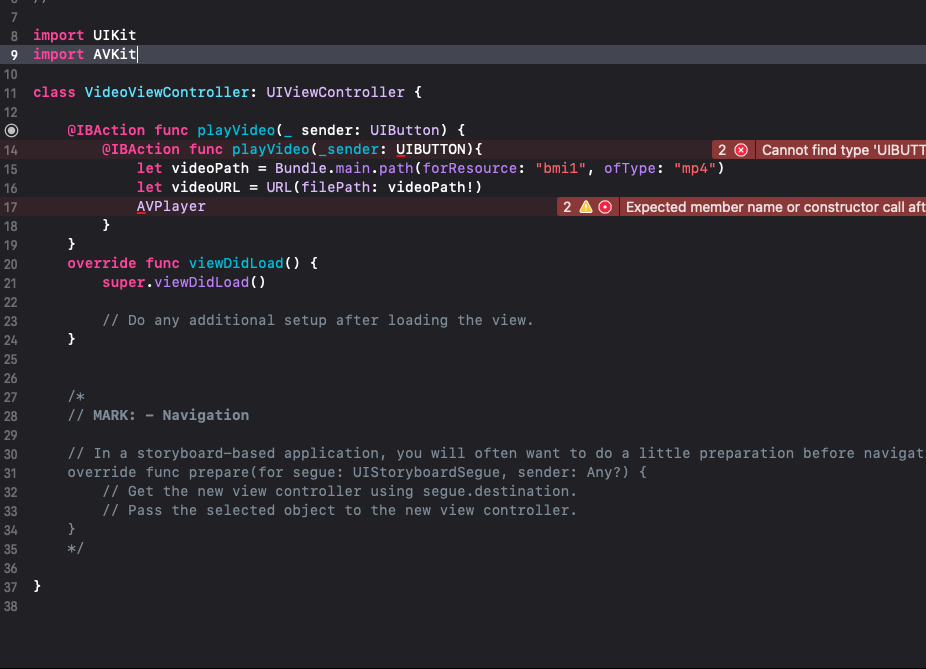
//
//  VideoViewController.swift
//  BMIA
//
//  Created by 소프트웨어컴퓨터 on 2025/11/18.
//

import UIKit
import AVKit

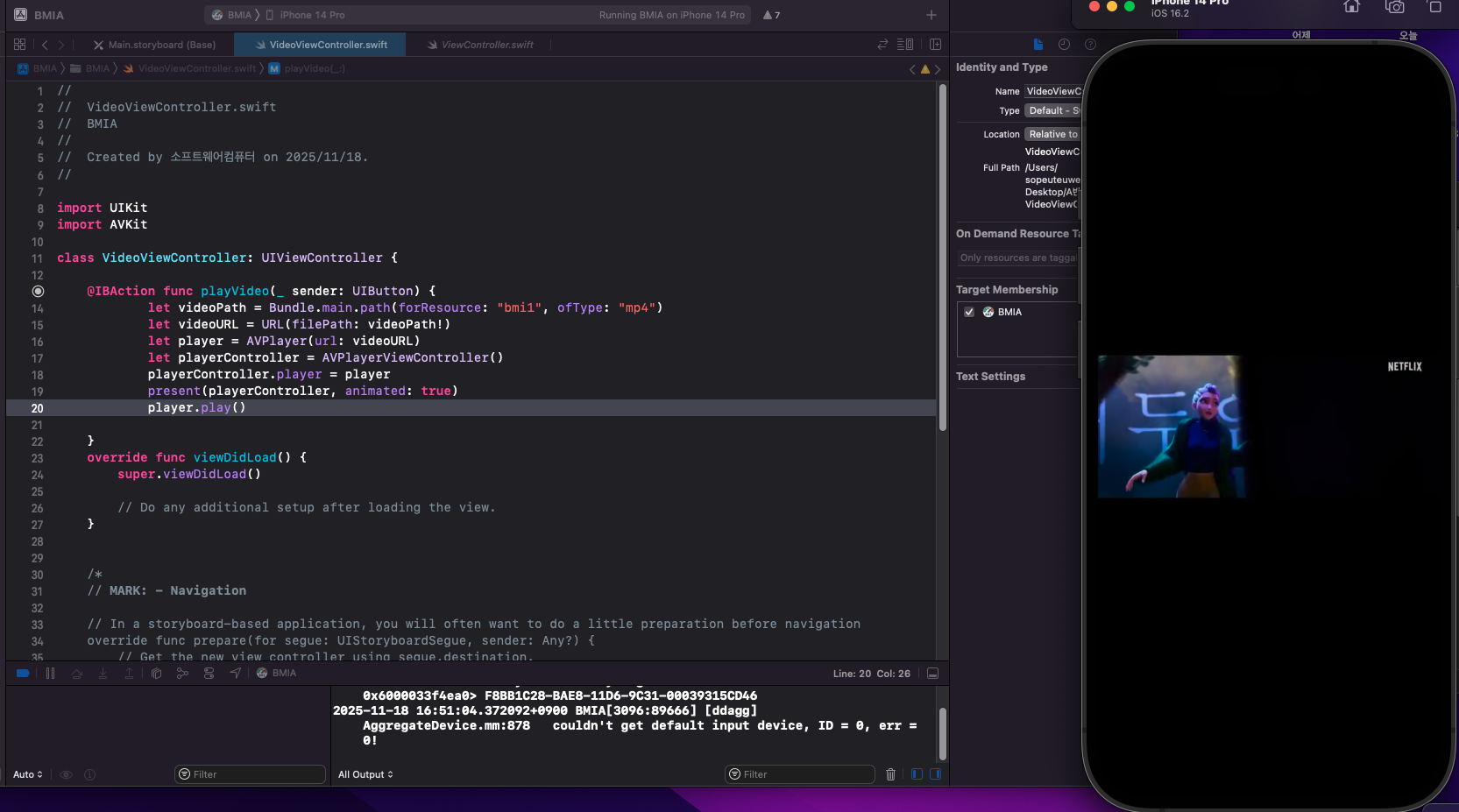
class VideoViewController: UIViewController {

    @IBAction func playVideo(_ sender: UIButton) {
            let videoPath = Bundle.main.path(forResource: "bmi", ofType: "mp4")
            let videoURL = URL(filePath: videoPath!)
            let player = AVPlayer(url: videoURL)
            let playerController = AVPlayerViewController()
            playerController.player = player
            present(playerController, animated: true)
            player.play()

    }
    override func viewDidLoad() {
        super.viewDidLoad()

        // Do any additional setup after loading the view.
    }


    /*
    // MARK: - Navigation

    // In a storyboard-based application, you will often want to do a little preparation before navigation
    override func prepare(for segue: UIStoryboardSegue, sender: Any?) {
        // Get the new view controller using segue.destination.
        // Pass the selected object to the new view controller.
    }
    */

}
아주 좋아. 지금 작성한 코드는 프로젝트 내부에 포함된 동영상(bmi1.mp4)을 AVPlayerViewController로 재생하는 완성된 코드야.
각 줄이 어떤 역할을 하는지 시험용 설명처럼 깔끔하게 정리해서 설명해줄게.
🎥 VideoViewController.swift 코드 설명
import UIKit
import AVKit
- UIKit: 화면 구성(ViewController, UIButton 등)을 위해 필요
- AVKit: 동영상 재생을 위한 AVPlayer, AVPlayerViewController를 사용하기 위해 import
class VideoViewController: UIViewController {
- 스토리보드의 Video Scene과 연결되는 ViewController 클래스
- UIViewController를 상속하여 화면을 구성
@IBAction func playVideo(_ sender: UIButton) {
- 스토리보드 버튼의 Touch Up Inside 이벤트와 연결된 함수
- 버튼을 눌렀을 때 이 함수가 실행됨
🔍 동영상 재생 핵심 부분
let videoPath = Bundle.main.path(forResource: "bmi", ofType: "mp4")- 앱 번들(Bundle) 안에서 bmi1.mp4 파일을 찾아 경로(String)로 가져옴
- 프로젝트에 bmi1.mp4가 포함되어 있어야 한다
- 없다면 nil이 됨
let videoURL = URL(filePath: videoPath!)
- 문자열로 된 파일 경로 → URL형식으로 변환
- 강제 언래핑(!) 사용
→ 파일이 진짜 존재해야 함
→ 없으면 앱이 crash → 시험에서는 OK
let player = AVPlayer(url: videoURL)
- AVPlayer 객체 생성
- videoURL을 통해 영상 데이터 로드
- 실제 재생을 수행하는 플레이어
let playerController = AVPlayerViewController()
playerController.player = player
- 동영상을 보여주는 전용 Controller 생성
- 이 화면에 player를 연결 → UI + 재생 기능 제공
present(playerController, animated: true)
- 영상 플레이어 화면을 모달 방식으로 띄움
- 영상 팝업이 화면에 올라옴
player.play()
- 실제 동영상을 재생 시작
- present가 끝나자마자 재생 (자동재생)
🧩 viewDidLoad()
override func viewDidLoad() {
    super.viewDidLoad()
}
- 화면이 처음 로드될 때 한 번 실행
- 현재는 특별한 설정 없음
📝 전체 동작 요약
- 사용자가 "재생" 버튼을 누름
- btn → playVideo() 호출
- 앱 번들에서 bmi1.mp4 파일을 찾음
- 경로를 URL로 바꿔서 AVPlayer 생성
- AVPlayerViewController에 연결
- 화면에 모달로 표시
- 동영상 자동 재생
🎯 요약
VideoViewController는 AVPlayer와 AVPlayerViewController를 이용해 앱 번들에 포함된 동영상(bmi.mp4)을 재생한다. playVideo()는 프로젝트 내부 동영상 파일의 경로를 Bundle.main에서 읽어 URL로 변환한 후, AVPlayer를 생성하여 AVPlayerViewController에 연결한 뒤 present하여 재생하는 함수이다.
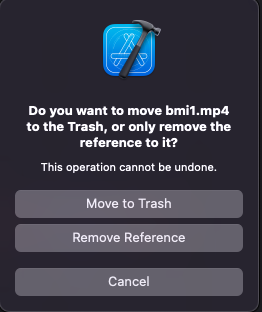
완전히 지울때는 move to trash를 사용해야한다
//
//  VideoViewController.swift
//  BMIA
//
//  Created by 소프트웨어컴퓨터 on 2025/11/18.
//

import UIKit
import AVKit

class VideoViewController: UIViewController {

    @IBAction func playVideo(_ sender: UIButton) {
            let videoPath = Bundle.main.path(forResource: "bmi", ofType: "mp4")
            let videoURL = URL(filePath: videoPath!)
            let player = AVPlayer(url: videoURL)
            let playerController = AVPlayerViewController()
            playerController.player = player
            present(playerController, animated: true)
            player.play()

    }
    override func viewDidLoad() {
        super.viewDidLoad()

        // Do any additional setup after loading the view.
    }


    /*
    // MARK: - Navigation

    // In a storyboard-based application, you will often want to do a little preparation before navigation
    override func prepare(for segue: UIStoryboardSegue, sender: Any?) {
        // Get the new view controller using segue.destination.
        // Pass the selected object to the new view controller.
    }
    */

}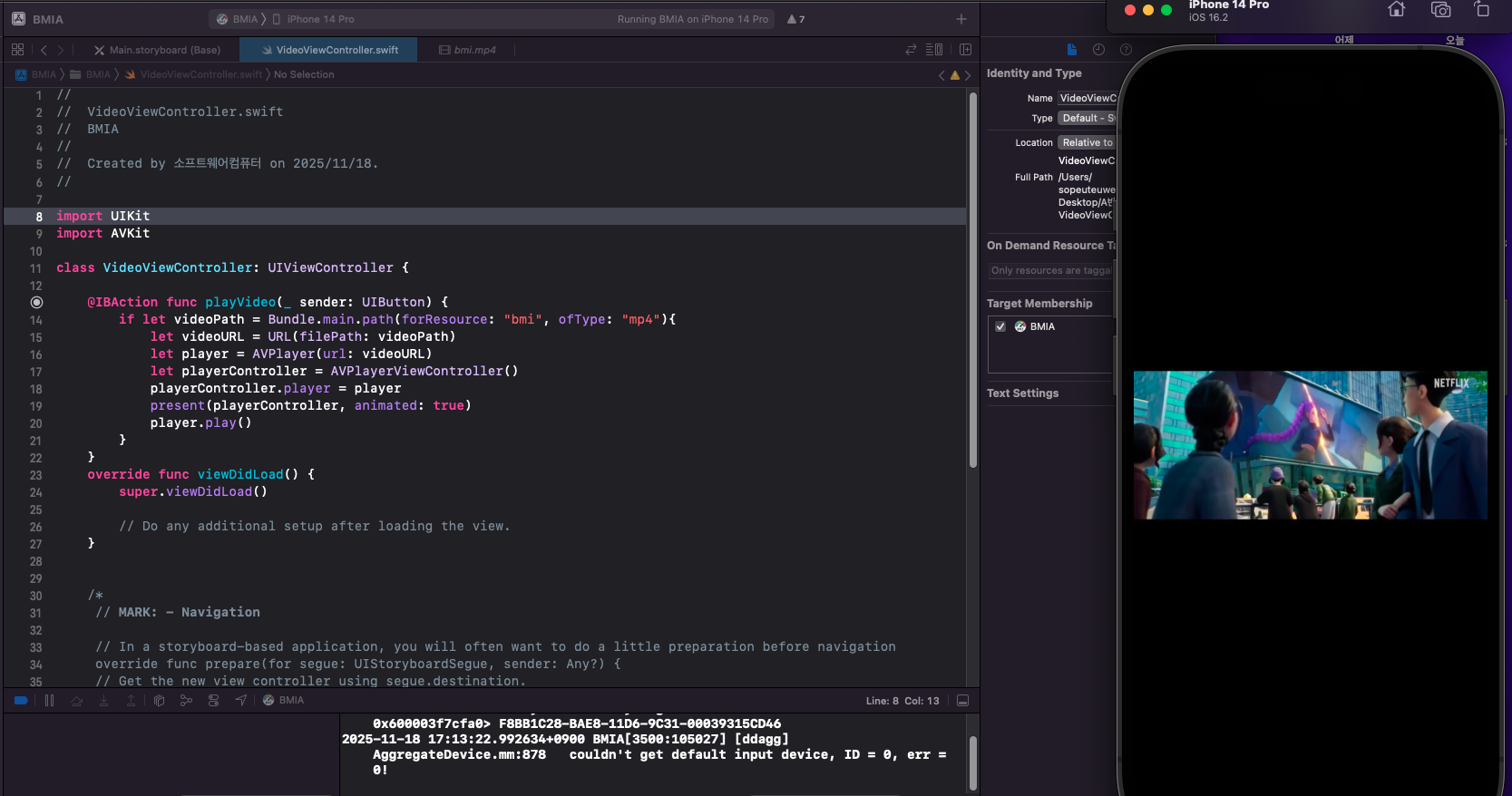
if let으로 변경

//
//  VideoViewController.swift
//  BMIA
//
//  Created by 소프트웨어컴퓨터 on 2025/11/18.
//

import UIKit
import AVKit

class VideoViewController: UIViewController {

    @IBAction func playVideo(_ sender: UIButton) {
        if let videoPath = Bundle.main.path(forResource: "bmi", ofType: "mp4"){
            let videoURL = URL(filePath: videoPath)
            let player = AVPlayer(url: videoURL)
            let playerController = AVPlayerViewController()
            playerController.player = player
            present(playerController, animated: true)
            player.play()
        }
    }
    override func viewDidLoad() {
        super.viewDidLoad()

        // Do any additional setup after loading the view.
    }


    /*
     // MARK: - Navigation

     // In a storyboard-based application, you will often want to do a little preparation before navigation
     override func prepare(for segue: UIStoryboardSegue, sender: Any?) {
     // Get the new view controller using segue.destination.
     // Pass the selected object to the new view controller.
     }
     */

}
bmi1로 바꿔도 크러시가 안남
하지만 블럭{}이 하나 더 생겨서 불편할 수도 있다
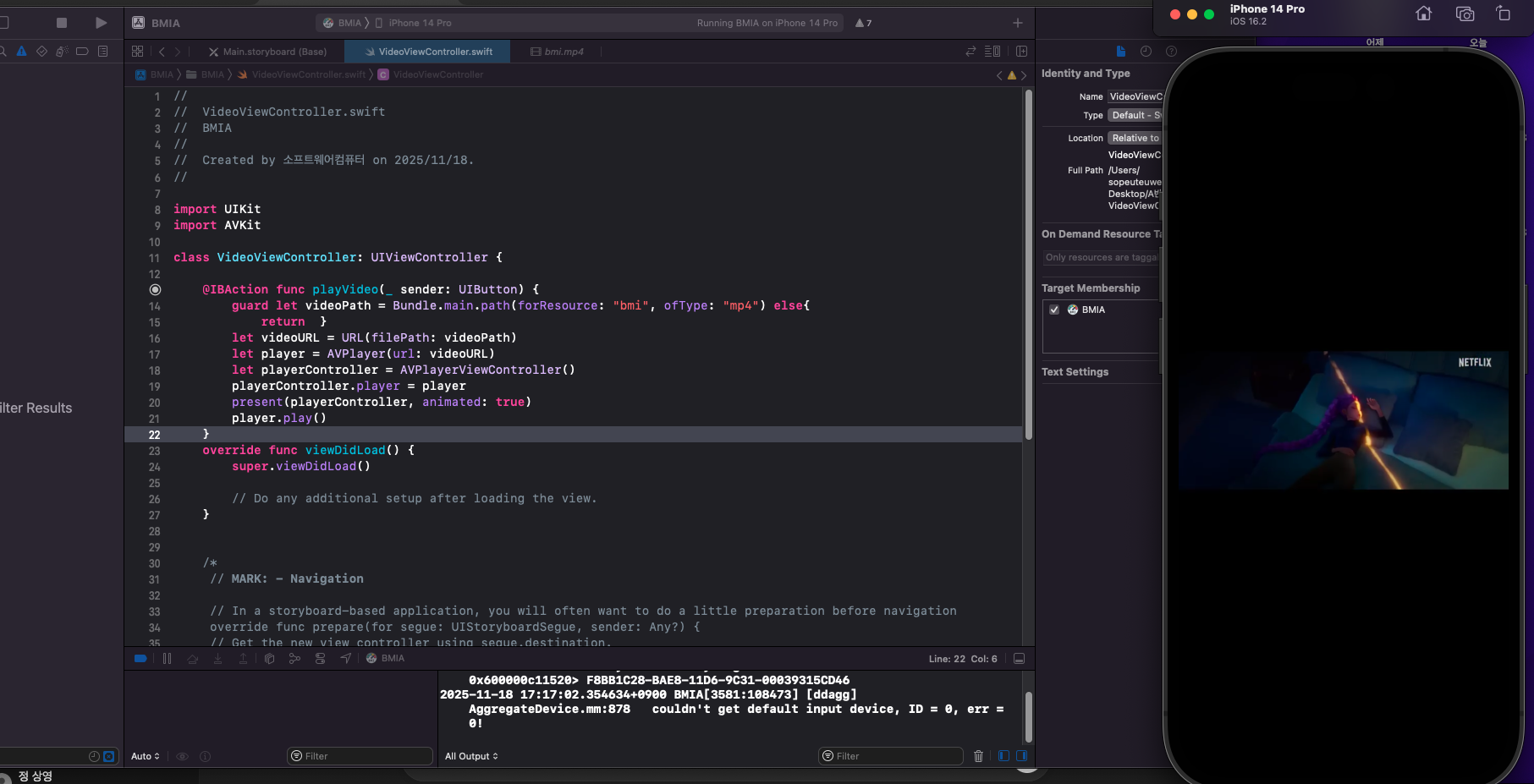
따라서 guard let을 더 많이 사용하는데
//
//  VideoViewController.swift
//  BMIA
//
//  Created by 소프트웨어컴퓨터 on 2025/11/18.
//

import UIKit
import AVKit

class VideoViewController: UIViewController {

    @IBAction func playVideo(_ sender: UIButton) {
        guard let videoPath = Bundle.main.path(forResource: "bmi", ofType: "mp4") else{
            return  }
        let videoURL = URL(filePath: videoPath)
        let player = AVPlayer(url: videoURL)
        let playerController = AVPlayerViewController()
        playerController.player = player
        present(playerController, animated: true)
        player.play()
    }
    override func viewDidLoad() {
        super.viewDidLoad()

        // Do any additional setup after loading the view.
    }


    /*
     // MARK: - Navigation

     // In a storyboard-based application, you will often want to do a little preparation before navigation
     override func prepare(for segue: UIStoryboardSegue, sender: Any?) {
     // Get the new view controller using segue.destination.
     // Pass the selected object to the new view controller.
     }
     */

}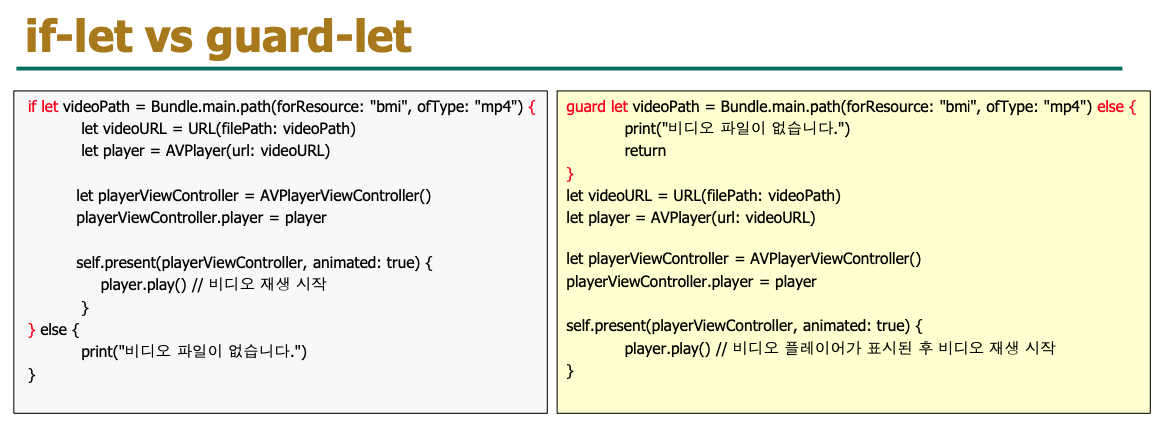
좋아! Swift에서 if let 과 guard let 은 둘 다 안전하게 옵셔널을 언래핑하는 기능이지만,
목적과 사용 방식이 다르기 때문에 “어떤 상황에서 더 좋은지” 정리해줄게.
✅ if let vs guard let — 차이점 요약
1) if let
✔ 특징
- 조건문 내부에서만 언래핑한 값을 사용 가능
- 여러 조건을 연결할 때 편함
- 실패 했을 때 else 블록에서 처리
✔ 단점
- 성공 코드가 중첩된 들여쓰기가 생겨 복잡해짐
- 함수의 흐름이 안쪽으로 들어가기 때문에 가독성이 떨어짐
✔ 사용 추천 상황
- 조건문 안에서만 값이 필요할 때
- 짧고 간단한 경우
- 여러 조건을 동시에 체크할 때
2) guard let
✔ 특징
- 언래핑 실패 시 즉시 함수 종료(return)
- 반대로 “성공한 경우 코드 흐름을 바깥에서 그대로 이어서 처리”
- 들여쓰기가 생기지 않아 코드가 깔끔해짐
✔ 장점
- 가장 가독성이 좋고 안전한 패턴
- Early Exit(조기 종료)로 오류 처리에 최적화
- Swift 공식 가이드에서도 추천하는 패턴
✔ 사용 추천 상황
- 함수 전체에서 언래핑한 값이 계속 필요할 때
- 필수 값(예: 파일, URL, JSON 등)이 없으면 바로 종료해야 할 때
- 코드 흐름을 깨끗하게 유지하고 싶을 때
🎯 둘 중 어느 것이 더 좋은가?
▶ 대부분 guard let이 더 좋다. (Swift 권장 스타일)
그 이유는:
- 코드 들여쓰기가 줄어들어 훨씬 깔끔함
- 실패 시 바로 return 가능 → 안정적
- Swift 개발자들이 가장 많이 쓰는 방식
- Apple 공식 문서에서도 guard 패턴을 더 권장
📌 실제 예 비교
❌ if let — 들여쓰기 증가
if let path = ... {
    if let url = ... {
        // 성공
    } else {
        return
    }
} else {
    return
}
✔ guard let — 훨씬 깔끔
guard let path = ... else { return }
guard let url = ... else { return }

// 여기부터는 무조건 path, url이 유효한 상태
📐 최종 정리
if let은 조건문 내부에서 사용할 옵셔널 바인딩에 적합하지만 들여쓰기가 늘고 가독성이 떨어질 수 있다.
guard let은 실패 시 조기 종료(Early Exit)하여 코드 흐름을 단순하게 만들고 가독성이 좋아 Swift에서 더 많이 사용되며 권장되는 방식이다.

추가
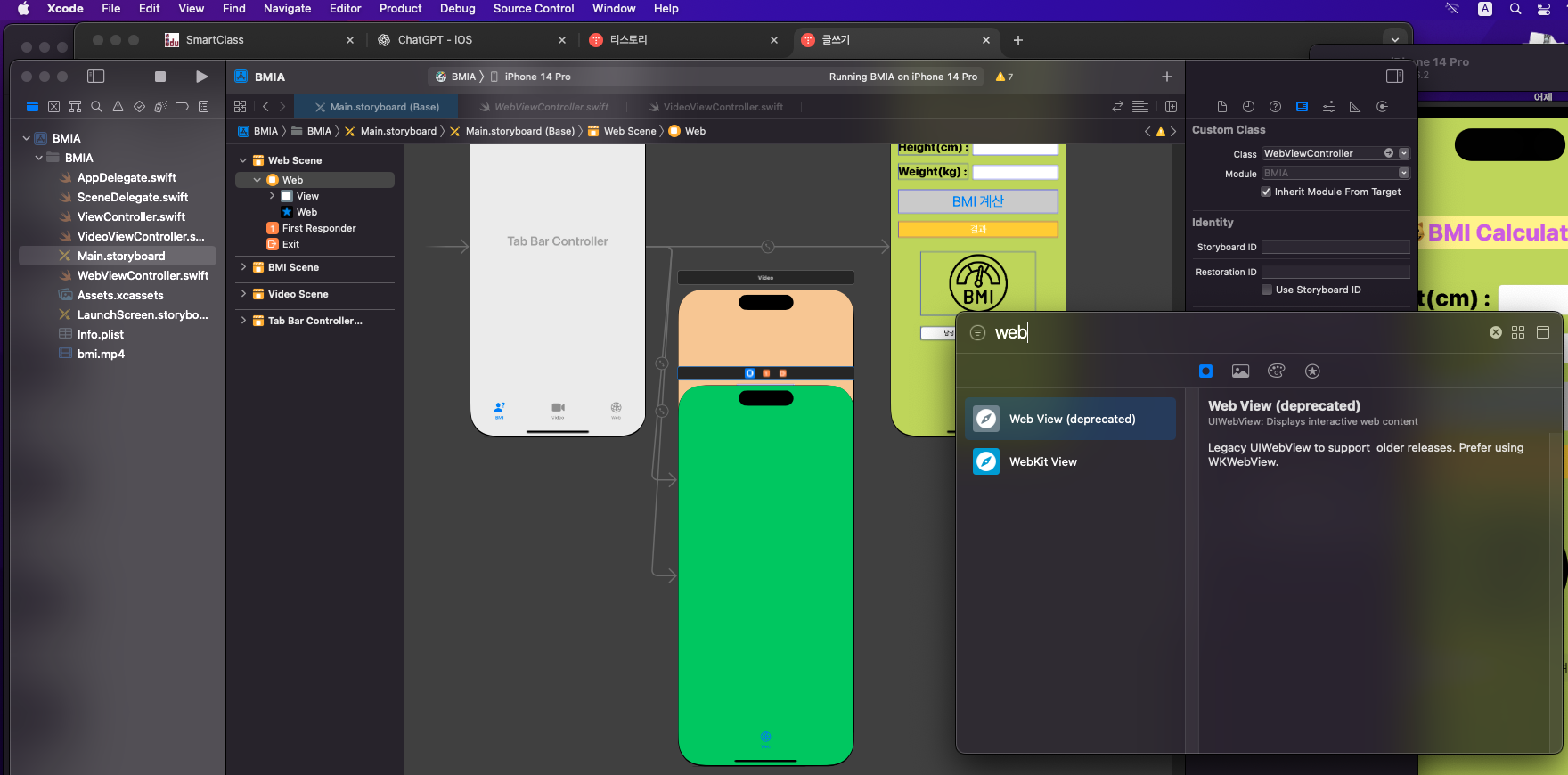
Legacy UIWebView to support older releases. Prefer using WKWebView. = 곧 사라질 프로그램이다
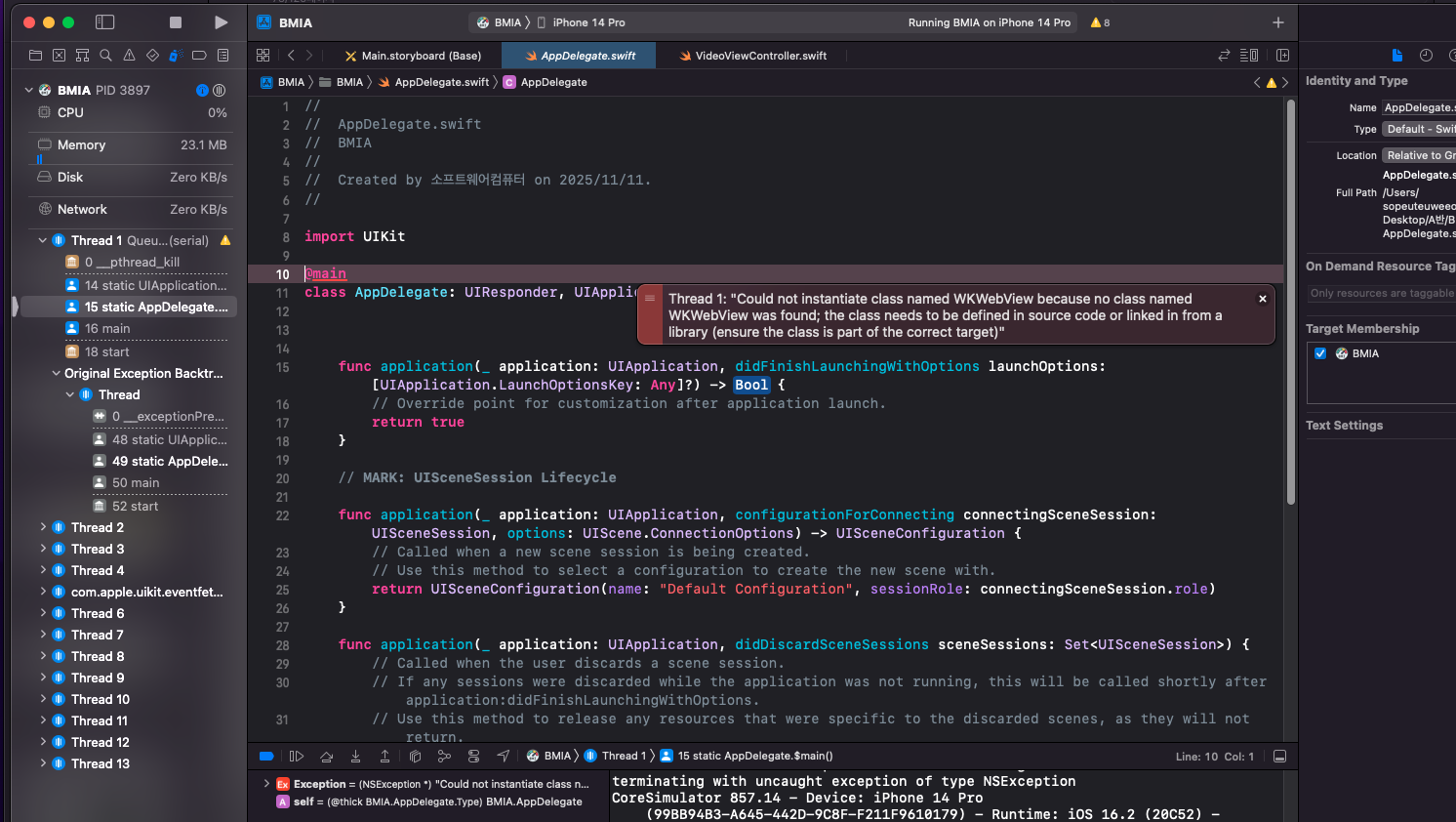
Thread 1: "Could not instantiate class named WKWebView because no class named WKWebView was found; the class needs to be defined in source code or linked in from a library (ensure the class is part of the correct target)"
중요한 에러다.
WKWebView가 프로젝트에서 사용 가능한 상태가 아니라서 생기는 전형적인 오류
//
//  WebViewController.swift
//  BMIA
//
//  Created by 소프트웨어컴퓨터 on 2025/11/18.
//

import UIKit
import WebKit

class WebViewController: UIViewController {

    @IBOutlet weak var wkwebview: WKWebView!

    @IBAction func goYouTube(_ sender: UIButton) {
        // 유튜브 URL
        let youtubeUrl = "https://m.youtube.com/"

        // URL 객체로 변환
        if let url = URL(string: youtubeUrl) {
            let request = URLRequest(url: url)
            wkwebview.load(request)     // ★ 웹뷰에 사이트 로드
        } else {
            print("유효하지 않은 URL입니다.")
        }
    }

    override func viewDidLoad() {
        super.viewDidLoad()
    }
}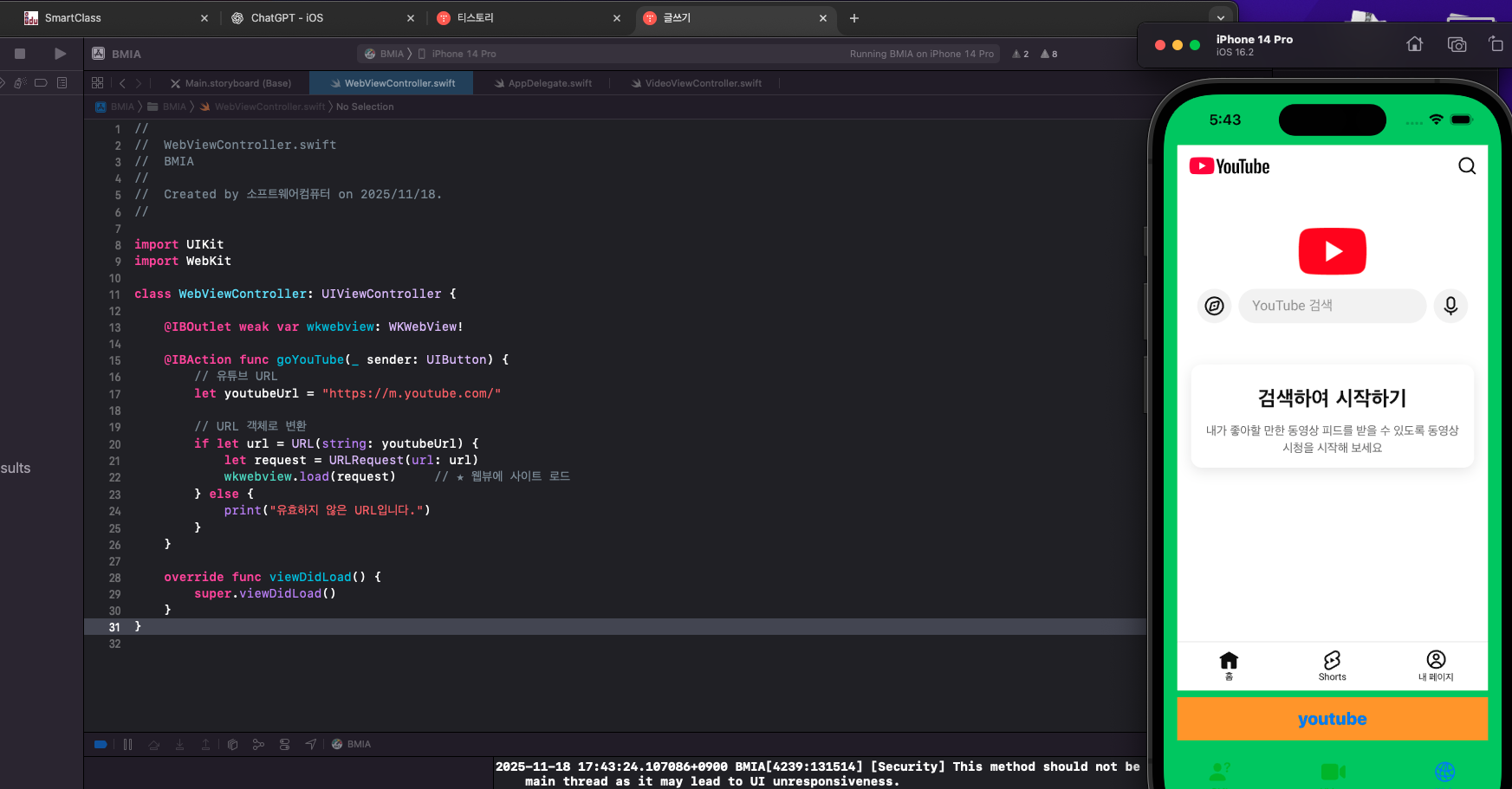
유튜브를 실행하는 코드
'iOS 기초 > 수업 내용 및 수업 후 과제' 카테고리의 다른 글
| iOS 12주차 수업 내용 및 수업 후 과제 (0) | 2025.11.25 |
|---|---|
| iOS 11주차 수업 내용 및 수업 후 과제 (1) | 2025.11.11 |
| iOS 수업 내용 및 수업 후 과제 (0) | 2025.11.11 |
| iOS 9주차 수업 내용 및 수업 후 과제 (0) | 2025.10.28 |
| iOS 6,7주차 (0) | 2025.10.14 |